Welcome
editide is the best way for AI agents to create and edit PowerPoint presentations.
We built a PowerPoint API from the ground up for AI, so your agents do more with fewer tokens.
Backed by a proprietary engine with zero Microsoft Office dependencies, editide runs in any environment.
Whether you work inside PowerPoint, in your favorite AI application, or directly in code, editide makes complex slide editing simple.
Email support@editide.com if you need any help.
Install the editide PowerPoint add-in
Step-by-step instructions to get started.
Prerequisites
- An editide account with an active subscription — sign up here and subscribe to a plan.
- Microsoft PowerPoint (Windows, Mac, or web).
- The add-in works on the web version of PowerPoint, but we recommend a desktop version for the best performance.
- Not available on mobile or iPad versions of PowerPoint.
Add-in installs may be restricted in your organization. If the steps below are unavailable, editide needs to be deployed by an administrator. Contact our sales team to set up an enterprise plan and roll it out across your organization.
Install for yourself (recommended)
The fastest way to get editide if you're setting it up for your own account.
 Open in PowerPoint
Jumps straight to the install prompt in desktop PowerPoint. Your browser will ask for permission to open PowerPoint first.
In PowerPoint, go to the Home tab and click Add-ins. You can also click File and locate the Get Add-ins button.
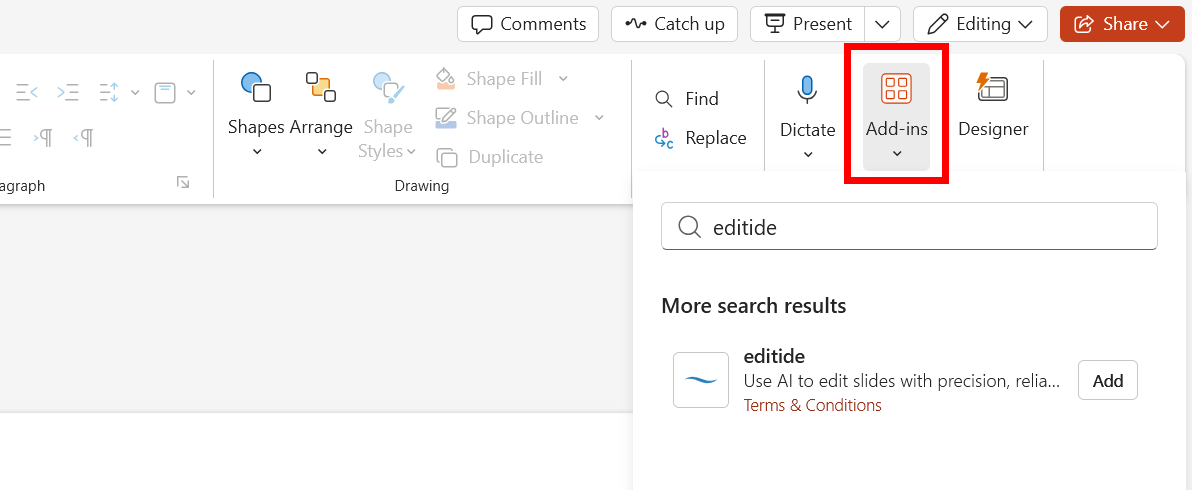
Search for editide in the store, then click Add.
Accept the license terms and privacy policy to finish installing.
Deploy across your organization (administrators)
If you're a Microsoft 365 administrator, you can roll editide out to other people from the Microsoft 365 Admin Center.
This route requires a work or school account with admin rights. Personal accounts — including personal Gmail or consumer Microsoft accounts — can't deploy add-ins this way. If you don't have admin access, ask your IT administrator or contact our sales team.
Open the editide add-in on the Microsoft Marketplace, click Get it now, and sign in with your work account. You can also start from the Microsoft 365 Admin Center → Settings → Integrated apps → Get apps.
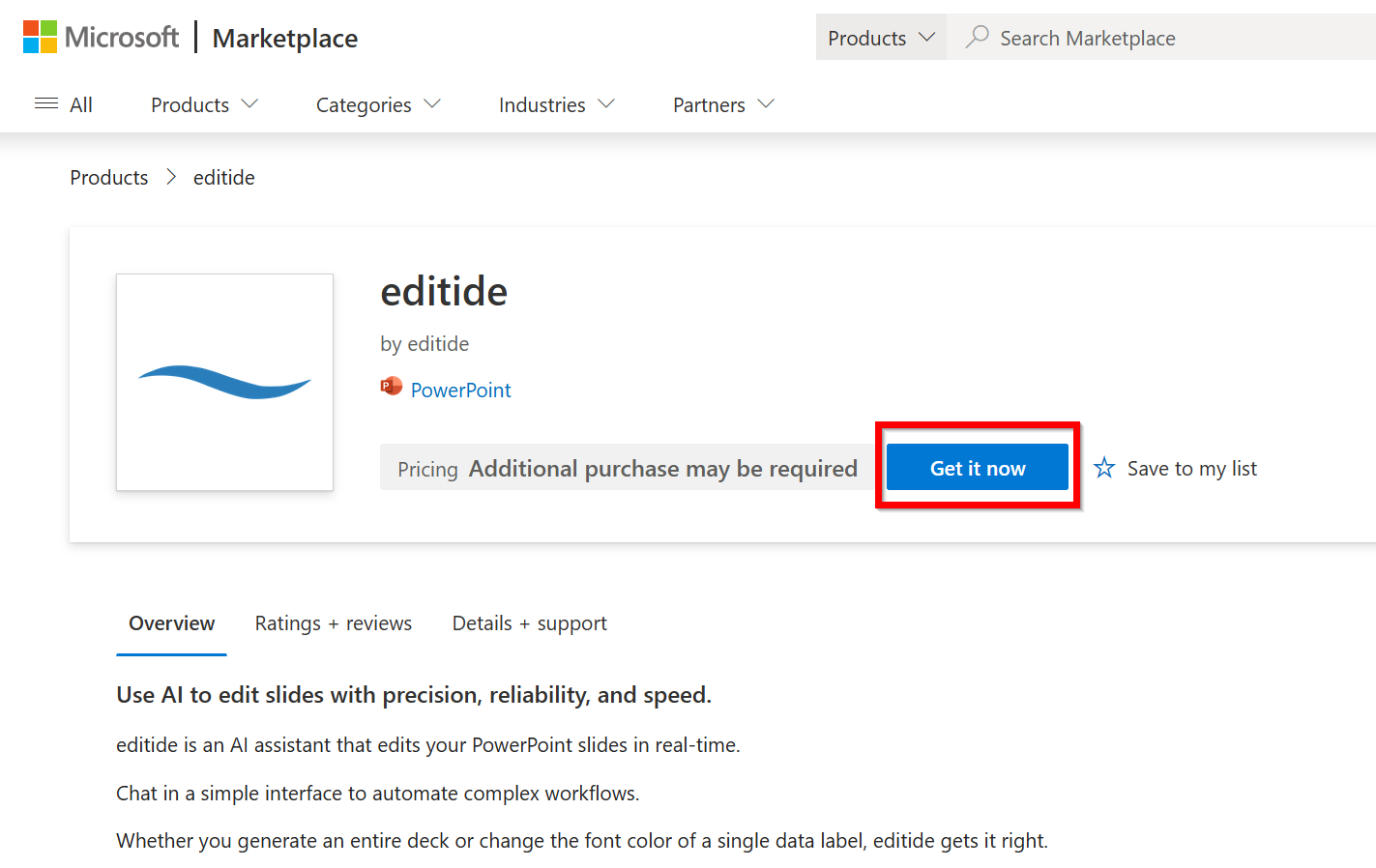
Select the users to add:
- Just me — your account only
- Entire organization — everyone in your tenant
- Specific users/groups — a subset of your organization
Review the settings and deploy. editide appears for assigned users under Home → Add-ins in PowerPoint within minutes (a full organization rollout can take up to 24 hours).
Contact support@editide.com if you have any issues.
Overview
Edit PowerPoint files programmatically with natural language or direct tool calls.
The REST API exposes the same engine that powers the add-in and MCP server.
The session lifecycle
Every file you upload opens a short-lived session, identified by a file_id.
Upload
A .pptx — or create a blank deck with POST /api/presentations/new — and get back a file_id that names the session.
Edit
Run the /edit agent with a natural-language instruction, or call tools directly for deterministic changes.
Download
The modified .pptx.
The session and its files are deleted 8 hours after upload, so treat a file_id as temporary. See Endpoints for the full call surface and Quick Start for a working example.
Base URL
All endpoints are served from a single host:
https://cloud.editide.comKeys at a glance
| Key | Header | Needed for |
|---|---|---|
| editide API key | X-Api-Key | Every request |
| LLM key (BYOK) | X-Anthropic-Key, X-OpenAI-Key, or AWS Bedrock credentials | The /edit endpoint only |
See Authentication for more detail.
Interactive API reference
For a live reference — endpoints, request/response schemas, and test calls in your browser — use the interactive explorer: Open API Explorer.
You can also retrieve the tool schemas programmatically:
GET https://cloud.editide.com/api/toolsReturns a JSON array of all available PowerPoint tools with their parameter schemas.
Quick Start
Upload, edit, and download a deck in three calls.
Prerequisites
- An editide account with an active API subscription — sign up here.
- An API key from the dashboard.
Edit endpoint
Upload
FILE_ID=$(curl -s https://cloud.editide.com/api/presentations \
  -H "X-Api-Key: eid_your_key_here" \
-F "file=@deck.pptx" | jq -r .file_id)Edit
Requires an LLM API key.
curl -s https://cloud.editide.com/api/presentations/$FILE_ID/edit \
  -H "X-Api-Key: eid_your_key_here" \
  -H "X-Anthropic-Key: sk-ant-..." \
  -H "Content-Type: application/json" \
-d '{"instruction":"Add a summary slide at the end", "model":"sonnet"}'Download
curl -s https://cloud.editide.com/api/presentations/$FILE_ID \
  -H "X-Api-Key: eid_your_key_here" \
  -o result.pptx
You can edit repeatedly before downloading. Each /edit continues the conversation — the agent remembers earlier instructions. To start a new conversation, upload a new presentation.
Tool call
Upload
FILE_ID=$(curl -s https://cloud.editide.com/api/presentations \
  -H "X-Api-Key: eid_your_key_here" \
-F "file=@deck.pptx" | jq -r .file_id)edit_slide
No LLM API key needed.
curl -s https://cloud.editide.com/api/tools/edit_slide \
  -H "X-Api-Key: eid_your_key_here" \
  -H "Content-Type: application/json" \
  -d '{
        "presentation_id": "'"$FILE_ID"'",
        "slide_index": 1,
        "slide": {
          "text_elements_to_add": [
            { "position": {"left": 40, "top": 320},
              "text_component": {
                "paragraph_list": [
                  { "runs": [ {"text": "Hello, world"} ] }
                ]
              } }
          ]
        }
}'Download
curl -s https://cloud.editide.com/api/presentations/$FILE_ID \
  -H "X-Api-Key: eid_your_key_here" \
-o result.pptxAuthentication
Authenticate with API keys and bring-your-own LLM api key for the /edit endpoint.
editide API key
Required for every request. It identifies your account and tracks usage.
X-Api-Key: eid_your_key_hereGenerate keys from the dashboard. Each key works with both the REST API and the MCP endpoints.
LLM API key (BYOK — edit endpoint only)
The /edit endpoint runs an AI agent that needs an LLM provider. This is the only endpoint that requires a third-party API key. Bring your own key in one of three shapes — send exactly one shape per request:
Claude
X-Anthropic-Key: sk-ant-...OpenAI
X-OpenAI-Key: sk-...Amazon Bedrock
X-AWS-Access-Key-Id: ...
X-AWS-Secret-Access-Key: ...
X-AWS-Region: ...
X-AWS-Session-Token: ...   # optional
Sending more than one shape, or a partial AWS triple, returns 400. AWS keys can be used to access both Claude and GPT models.
The LLM key is never stored — send it on every /edit call. It is used for the duration of the request and discarded.
How keys are scoped
Keys belong to an account, and limits are enforced per account rather than per key. Minting additional keys does not raise your rate limit — every key draws from the same budget. Use separate keys to isolate environments or rotate credentials, not to buy headroom. For more, see Rate Limits.
Keep keys server-side. The editide key authorizes billable edits, and an LLM key authorizes spend on your provider account — neither belongs in client-side code.
Billing
Outcome-based pricing — pay per slide delivered, not per requests or tokens.
You are billed per slide delivered: a slide whose content you created or changed, counted at the moment you retrieve it.
Delivery is the trigger — a slide only counts for billing once it leaves the service through a download or a merge.
Token usage is not billed by editide. Each /edit request returns its token usage for your reference, but the underlying LLM cost is charged to your own Anthropic, OpenAI, or AWS account.
Tools that make a slide billable
A slide becomes billable only when a tool changes its content. Reading, inspecting, reordering, and deleting won't make a slide billable.
| Tool | Effect |
|---|---|
| edit_slide | Changes/adds text, shapes, tables, charts, or pictures on a slide |
| add_slide | Creates a new slide |
| copy_slide | Duplicates a slide, within a deck or across decks |
| import_data_to_chart | Creates or updates a chart from a spreadsheet file |
| import_data_to_table | Creates or updates a table from your data |
| insert_visual | Places a stock photo, icon or company logo on a slide |
See the tool catalog for the list of tools that don't make a slide billable. Those tools not listed above are free to call (subject to rate limits).
How billable slides are counted
- Editing the same slide many times before delivery counts as one slide.
- One request that changes ten slides counts as ten — billing is per slide, not per call or per turn.
- The count resets at delivery. Re-downloading an unchanged file is free; editing a slide again after a delivery bills it again on the next one.
Delivery: downloads and merges
Two operations deliver slides and settle the count:
- Download (most common) — GET /api/presentations/{file_id} delivers every modified slide since that file's last delivery.
- Merge — POST /api/presentations/merge delivers the modified slides from each source file at merge time, not just the slides in the merged result.
After either, those slides are settled: retrieving the same file again with no new edits is free.
Plan limits
Your plan also sets a monthly slide allowance. Reaching it returns 402 Payment Required; this is a plan limit, separate from the per-minute throttling covered in Rate Limits.
Some plans additionally cap monthly operations — direct tool and read calls made through the REST tool endpoints and MCP — and exceeding that cap also returns 402 Payment Required, asking you to upgrade.
Endpoints
Presentations, attachments, and direct tool calls.
All endpoints live under https://cloud.editide.com and require the X-Api-Key header.
Request and response bodies are JSON in snake_case, except for the multipart uploads and the binary download noted below.
You can also visit the interactive Open API Explorer to test the endpoints directly.
Presentations
Upload a presentation
POST /api/presentationsSend a multipart form with a single file field (.pptx). Returns { "file_id": ..., "filename": ... }; the file_id identifies the session for subsequent calls. The maximum file size depends on your plan — see Files & Limits.
FILE_ID=$(curl -s https://cloud.editide.com/api/presentations \
  -H "X-Api-Key: eid_your_key_here" \
  -F "file=@deck.pptx" | jq -r .file_id)
Create a blank presentation
POST /api/presentations/newCreates a blank 16:9 deck (one empty title slide) with no file to upload, and returns { "file_id": ..., "filename": ... } — usable with every other endpoint exactly like an upload. The body is optional; send { "filename": "pitch.pptx" } to name it, or nothing for untitled.pptx.
FILE_ID=$(curl -s https://cloud.editide.com/api/presentations/new \
  -H "X-Api-Key: eid_your_key_here" \
  -X POST | jq -r .file_id)
Edit a presentation
POST /api/presentations/{file_id}/editRun an AI agent that edits your .pptx file. This is the only endpoint that requires an LLM key, and must be sent on every /edit call — it is never stored between requests (see Authentication). The call is synchronous — it returns when the agent completes the task.
Body:
| Field | Type | Required | Description |
|---|---|---|---|
| instruction | string | yes | Natural-language description of the change. |
| model | string | yes | One of haiku, sonnet, opus, luna, terra, sol (case-insensitive). A missing or unknown model returns 400 with the accepted names. |
| attachment_ids | string[] | no | Attachments the agent may read for the edit — see Attachments. |
The model must match the LLM key you send: an Anthropic key pairs with the Claude models (haiku / sonnet / opus), an OpenAI key pairs with the GPT‑5.6 family (luna / terra / sol), and AWS Bedrock credentials work with any of the six. Kimi K2.6 and K3 are add-in only.
A second /edit sent while one is still running on the same file returns 409 — wait for the first to finish.
curl -s https://cloud.editide.com/api/presentations/$FILE_ID/edit \
  -H "X-Api-Key: eid_your_key_here" \
  -H "X-Anthropic-Key: sk-ant-..." \
  -H "Content-Type: application/json" \
  -d '{"instruction":"Add a summary slide at the end", "model":"sonnet"}'
Returns a JSON summary of the turn:
| Field | Type | Description |
|---|---|---|
| success | bool | Always true on a 200. |
| message | string | "Presentation edited successfully" when the deck changed, or "No changes were made". |
| file_id | string | The same id from your initial upload. |
| input_tokens | int | Fresh input tokens the agent read for the first time this turn (full price). Excludes prompt-cache reads and writes. |
| output_tokens | int | Tokens the agent produced on this turn. |
| cache_creation_tokens | int | Input tokens written into the prompt cache this turn. Anthropic charges a premium for these; always 0 for OpenAI models. |
| cache_read_tokens | int | Input tokens re-read from the prompt cache this turn, billed at a steep discount. On a warm conversation (repeated /edit calls on the same file_id) this is usually the largest bucket. |
The four token counts are provided solely so you can reconcile against your LLM provider's bill. editide bills per modified slide delivered, not per token (see Billing).
Total input the model processed = input_tokens + cache_creation_tokens + cache_read_tokens. The agent caches the system prompt, tool schemas, and slide context, so a warm turn typically shows a small input_tokens and a large cache_read_tokens.
Each call on the same file_id reuses the conversation context, so the agent remembers prior instructions.
You can switch models between calls within the same provider (e.g. sonnet → opus), but switching providers mid-conversation (Anthropic ↔ OpenAI) returns 400; upload the file again to start fresh under the new provider.
Download a presentation
GET /api/presentations/{file_id}Streams back the current .pptx. Modified slides are only billed on the first download. You can download as many more times as you want without incurring additional costs.
curl -s https://cloud.editide.com/api/presentations/$FILE_ID \
  -H "X-Api-Key: eid_your_key_here" \
  -o result.pptx
Merge presentations
POST /api/presentations/mergeCombines several uploaded decks into one, in the order given, and returns { "file_id": ..., "filename": ... } for the merged deck to download. All file_ids must belong to you.
Body:
| Field | Type | Required | Description |
|---|---|---|---|
| file_ids | string[] | yes | Presentations to merge, in output order. At least two are required. |
| output_filename | string | no | Name for the merged file. |
Tools
List tools
GET /api/toolsReturns a JSON array of every editide tool with its parameter schema. This is the same catalog the agent draws from (see Tools).
Call a tool directly
POST /api/tools/{tool_name}Runs a single tool deterministically, without the agent or an LLM key. The request body is that tool's parameters as JSON — find them with List tools or in the Tools section.
Attachments
You can upload attachments for the agent to reference in its tool calls. The agent has tools to read and import data from .xlsx, .pdf, .csv, and .json files. Similar to a presentation's file_id, you can upload an attachment to get an attachment_id to pass to the agent or reference in your direct tool calls.
Upload an attachment
POST /api/presentations/{file_id}/attachmentsSend a multipart form with a single file field. Stores the file against the presentation session and returns { "attachment_id": ..., "filename": ... }. If the session already has a file by that name, the upload is renamed and the response carries the granted name — refer to the attachment by what came back, not what you sent.
ATTACHMENT_ID=$(curl -s https://cloud.editide.com/api/presentations/$FILE_ID/attachments \
  -H "X-Api-Key: eid_your_key_here" \
  -F "file=@q3.xlsx" | jq -r .attachment_id)
Pass that attachment_id to any tool that reads a data file — see Importing data and Files & references — or in attachment_ids on the /edit endpoint above. Over MCP, the equivalent upload is the upload_file tool.
Upload a standalone attachment
POST /api/attachmentsA niche variant: upload a data file that isn't tied to any presentation. Send a multipart form with a single file field; returns { "attachment_id": ..., "filename": ... }. The id is scoped to your API key and works in direct tool calls (POST /api/tools/{tool_name} and the MCP tools) — for inspecting a file before a deck exists, e.g. get_excel_data_ranges to discover a workbook's sheets and ranges. It is not resolved by the /edit agent endpoint; for /edit, upload a per-presentation attachment instead.
Account
Check your key
GET /api/auth/whoamiReturns your identity, tier, and current-period usage without uploading a file or running a tool. Useful for verifying a key and reading your remaining slide quota.
curl -s https://cloud.editide.com/api/auth/whoami -H "X-Api-Key: eid_your_key_here"The response includes tier, product, usage_cents_this_period, slides_delivered_this_period, and a tier_definition object with your plan's monthly_slides_included and monthly_budget_cents.
Files
Supported file types and limits.
Supported file types
The primary file must be a .pptx. You can also attach secondary files to reference in your slide editing tasks.
| Type | Extensions | Use case |
|---|---|---|
| Images | .png, .jpg, .jpeg, .gif, .webp | Insert photos, reference visual layouts |
| Excel | .xlsx | Import data into charts and tables |
| Reference document content | ||
| CSV | .csv | Import tabular data |
| PowerPoint | .pptx | Copy slides or styles from a reference deck |
Macro-enabled Office files (.pptm, .xlsm), .svg, and .json are not accepted.
Size limits
The maximum presentation upload size depends on your plan:
| Plan | Max upload |
|---|---|
| Basic | 50 MB |
| Pro | 250 MB |
| Max / Enterprise | 500 MB |
Attachment caps are fixed by type, independent of plan:
| Attachment | Limit |
|---|---|
| Images | 10 MB |
| 13 MB or 100 pages | |
| Excel, CSV | 50 MB |
| Reference .pptx | 200 MB |
A session holds up to 25 attachments. At most 5 of those may be reference .pptx files.
Expiry
Files are deleted 8 hours after upload.
Rate Limits
Understanding throttling and request frequency limits.
These limits are designed to prevent abuse and you likely do not need to worry about them under normal usage.
If you are encountering rate limits from your normal workflows, please contact us.
This page covers rate limits, for slide quota limits connected to your plan see Billing.
Per-minute limits
| Limit | Applies to | Default |
|---|---|---|
| Messages | Agent edits — POST /api/presentations/{file_id}/edit | 60 / min |
| Files | Uploads, downloads, merges, attachments | 60 / min |
| Tools | Direct tool calls — POST /api/tools/{tool_name}, and all MCP tool calls | 60 / min |
| Lifecycle | Cheap session and auth operations | 120 / min |
A single edit request is one Message, no matter how many tools the agent runs internally to satisfy it. You are not charged a rate-limit hit per internal tool call — only per request you make.
If you upload many files, spread them out instead of uploading all at once.
These numbers are defaults and may change. Build retry logic against the 429 response and the Retry-After header rather than hardcoding a rate.
Limits are per account, not per key
All rate limits are scoped to your account, and every key you mint shares the same budget. Minting additional keys does not raise your limit — it splits it. If you need more headroom, upgrade your plan or contact us.
Concurrency
Separately from the per-minute limits, there is a ceiling on how many operations can be in flight at once per account — for example, simultaneous uploads. In practice you only reach it by firing many large operations in parallel. Keep a handful of concurrent requests in flight rather than dozens and you will not see it.
When you hit a limit
A throttled request returns:
HTTP/1.1 429 Too Many Requests
Content-Type: application/json
Retry-After: 60

{ "error": "Rate limit exceeded. Please slow down and retry shortly." }
Handle it by backing off and retrying. The Retry-After header tells you how many seconds to wait.
Most 429s are short-term throttling and clear on their own. If the response message says a monthly limit was reached — for example, your operations allowance per billing period — that's a plan limit. Retrying won't help; upgrade or wait for your limits to reset.
MCP clients
When you use editide through an MCP client, every tool call counts against the same Tools limit above, scoped to the same account. You rarely hit it interactively — the pace of an interactive session stays well under the limit. This will only be an issue with programmatic MCP usage.
Errors at a glance
| Status | Meaning | What to do |
|---|---|---|
| 429 | Too many requests this minute | Wait Retry-After seconds, then retry. |
| 402 | Monthly plan limit reached | Upgrade, or wait for the next billing period |
Errors
List of error status codes.
All errors return JSON with an error field and a correlation_id for support.
| Status | Meaning |
|---|---|
| 400 | Bad request — missing or invalid parameters, missing or mismatched LLM key on the /edit endpoint, or an unrecognized model |
| 401 | Unauthorized — missing or invalid API key, or key not authorized for this endpoint |
| 402 | Payment required — monthly plan limit reached, or billing not finished setting up. The JSON carries a machine-readable code: billing_period_not_configured, slide_quota_exceeded, or download_quota_exceeded |
| 404 | File not found or expired |
| 409 | Conflict — an edit is already in flight for this file_id; wait for it to finish before sending another |
| 413 | Payload too large — the upload exceeds your plan's size cap (see Files) |
| 429 | Too many requests — slow down and retry after the Retry-After window. A 429 that names a monthly limit means upgrade, not retry (see Rate Limits) |
| 500 | Server error — include the correlation_id when contacting support |
| 507 | Server temporarily at capacity — retry shortly |
A 402 and a 429 can both stem from limits, but they differ: 402 is your monthly plan allowance, while 429 is short-term per-minute throttling that usually clears on its own. See Rate Limits.
Overview
Run editide from your favorite AI apps like Claude Code, Claude Desktop, or Codex.
What is MCP?
The Model Context Protocol (MCP) lets AI agents use external tools. The editide MCP server gives your agent tools to read, edit, and render PowerPoint files — from the AI app you already use.
Connect
One endpoint, and two ways to authenticate:
https://cloud.editide.com/mcpSign in with OAuth — the simplest path. Add the endpoint to any OAuth-capable MCP client with no credentials; the client opens your browser, you sign in with your editide account and approve, and you're connected. This works anywhere the standard MCP authorization flow does — Claude (web, desktop, and Claude Code), Cursor, ChatGPT, and others. It requires an active individual API subscription — sign up here.
Use an API key — for everything OAuth doesn't cover: team/org plans (not supported over OAuth yet), automation with no browser to sign in from, and per-integration credentials you can revoke individually. Send a key from the dashboard as an X-Api-Key header.
Either way, usage lands on your account identically — the same slide quotas, totals, and billing. Your MCP client also needs file access and network permissions to move decks in and out.
How It Works
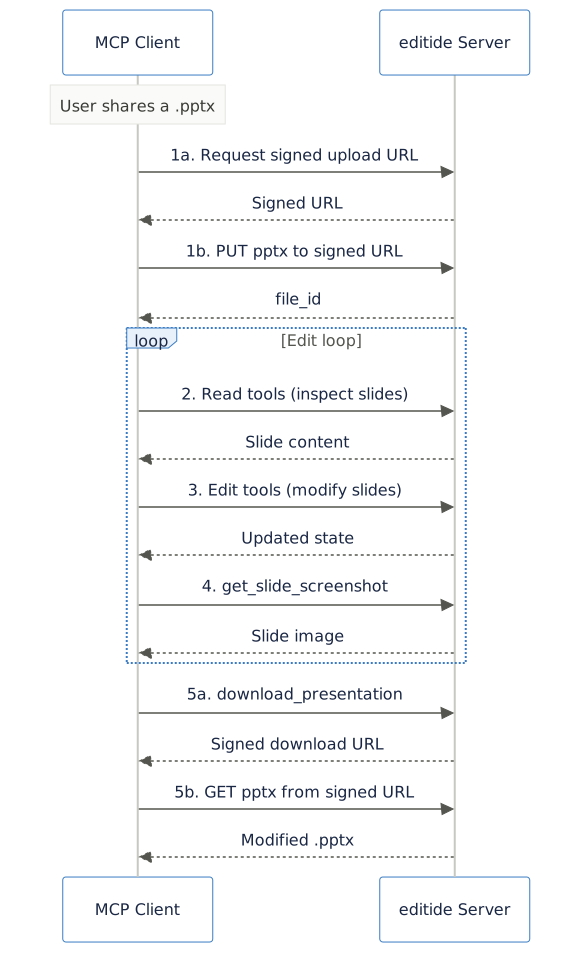
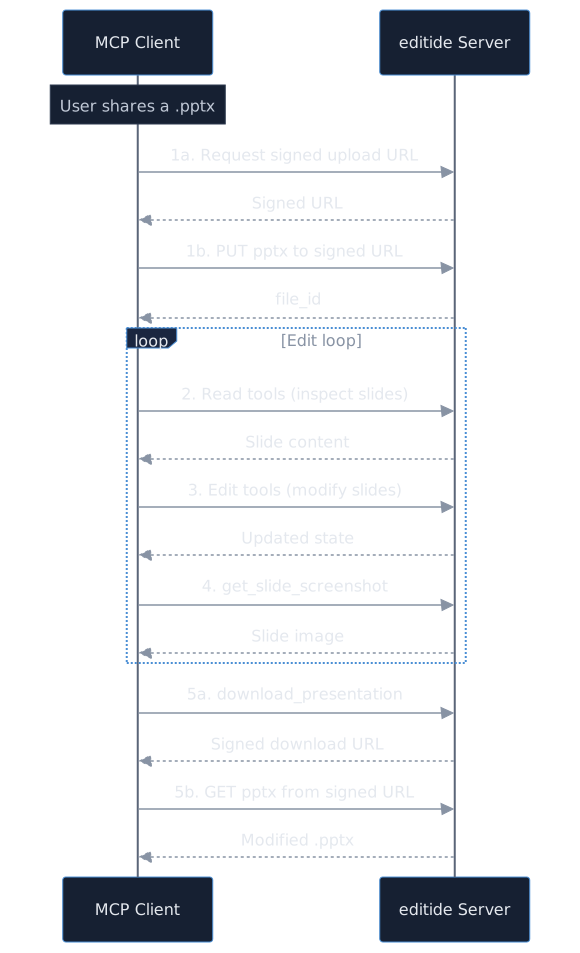
Once connected, the agent works through a simple loop:
Upload
The agent calls upload_presentation, which returns a file_id and a ready-to-run curl command. The file travels straight from your machine to editide over HTTPS; only the compact file_id flows through the agent. To start from nothing instead, create_presentation makes a blank deck server-side — no upload involved.
Read
list_slides and read_slide let the agent inspect the deck. Reading is free, so it can study your layout and styling before changing anything.
Edit
edit_slide, add_slide, import_data_to_chart, and related tools modify the deck in place on editide's servers, referencing it by file_id.
See the result
get_slide_screenshot renders a slide back as an image, so the agent can check its own work and fix mistakes.
Download
download_presentation returns a one-time curl command that writes the finished .pptx back to your machine.
File transfer with signed URLs
editide runs in the cloud and never touches your filesystem, and a .pptx is too large to inline inside a tool call. So files don't travel through the agent — they move directly between your machine and editide over HTTPS, and only the compact file_id flows through MCP. Three tools set this up, each the same shape: you call the tool, it hands back a short-lived URL, and your client runs a one-line curl to move the bytes.
| Tool | Returns | Move the bytes with |
|---|---|---|
| upload_presentation | file_id + upload_url | curl -T deck.pptx "<upload_url>" |
| download_presentation | filename + download_url | curl -o "<filename>" "<download_url>" |
| upload_file | attachment_id + upload_url | curl -T data.xlsx "<upload_url>" |
upload_file attaches a reference file (image, PDF, Excel, CSV, or a secondary .pptx) to an existing presentation's session; pass the returned attachment_id to tools like view_image_file, view_pdf, view_excel, or import_data_to_chart. For a secondary .pptx, pass its id as presentation_id to the reading tools to pull content from it. If the session already had a file by that name, the upload is renamed and the response carries the granted name. There is also merge_presentations, which combines several uploaded decks into one and returns the merged deck's file_id.
How the URL stays safe
Your API key authenticates the tool call that mints the URL — it never reaches the model or the curl command line. The signed URL itself is the only credential on the transfer, and it is deliberately weak on purpose:
- Single-use. Once a transfer completes, the URL is burned; replaying it fails.
- Short-lived. It expires about five minutes after it is minted (the response includes the exact expires_at).
- Tenant-bound. Identity and billing are baked into the URL when it's minted, so a URL can only ever touch files in the account that created it.
If a URL expires or a transfer fails, just call the tool again for a fresh one — there's no separate "retry" step. An interrupted upload or download leaves the URL live so the same command can be retried; only a clean success consumes it.
Because the key never lands on the curl command, nothing sensitive ends up in your shell history or the agent's context. This is what lets an MCP client move multi-megabyte decks without bloating the model's context or leaking credentials.
Uploaded files are deleted 8 hours after upload — see Files for limits and expiry, and Billing for how charges work.
Connect Claude Code to editide
Step-by-step instructions to set up the MCP connection.
Prerequisites
- An editide account with an active API subscription — sign up here.
- Claude Code in a Terminal CLI.
Connect with OAuth
From your terminal, navigate to the project folder and run:
claude mcp add --transport http editide https://cloud.editide.com/mcpThen authenticate the connection:
Launch Claude Code and enter /mcp.
Select editide, which will be marked Needs authentication.
Follow the authentication prompt to open your browser, sign in to editide, and approve the connection.
OAuth requires an active individual API subscription.
On a Team plan? Use an API key
OAuth isn't available for Team plans yet, so an API key is the only option. Create one from the dashboard, then run:
claude mcp add --transport http editide https://cloud.editide.com/mcp --header "X-Api-Key: eid_your_api_key_here"Manage the connection
Verify the server was added to your local config with:
claude mcp listTo remove, run:
claude mcp remove editideSee the Claude Code docs for more details.
Connect Claude to editide
Add editide as a connector and sign in — no API key to paste.
Prerequisites
- An editide account with an active API subscription — sign up here.
- Claude Desktop, or Claude in the browser at claude.ai — connectors work the same in both, and one added connector appears in both.
Add the connector
The first three steps are required for either setup. Sign-in with OAuth needs an individual plan — on a team/org plan, complete the domain allowlist steps, then use the extension with an API key below instead.
Click on your user profile in the bottom left and then click on Settings.
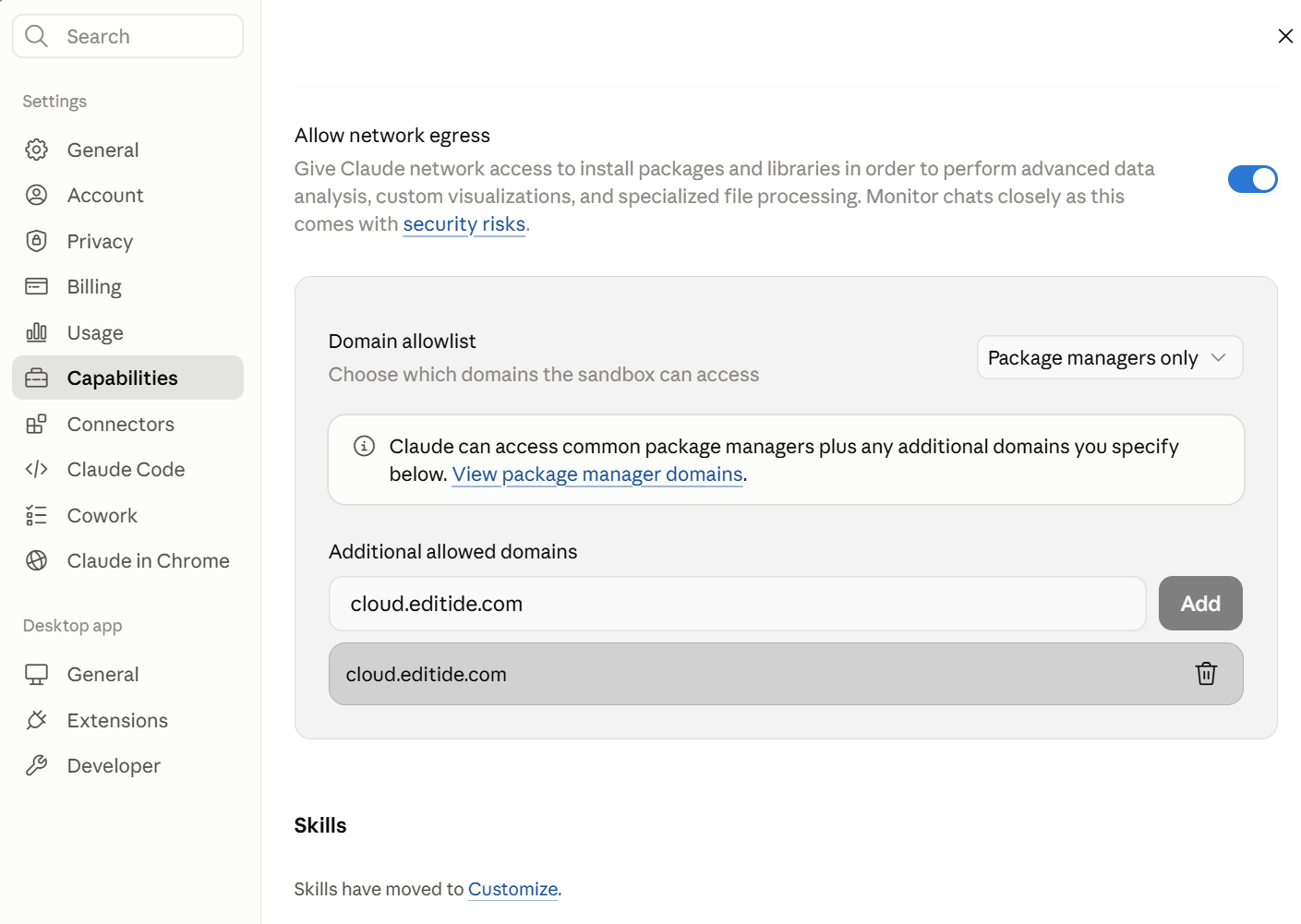
Select Capabilities from the left sidebar, and scroll down to Domain allowlist.
Type in cloud.editide.com and click Add.
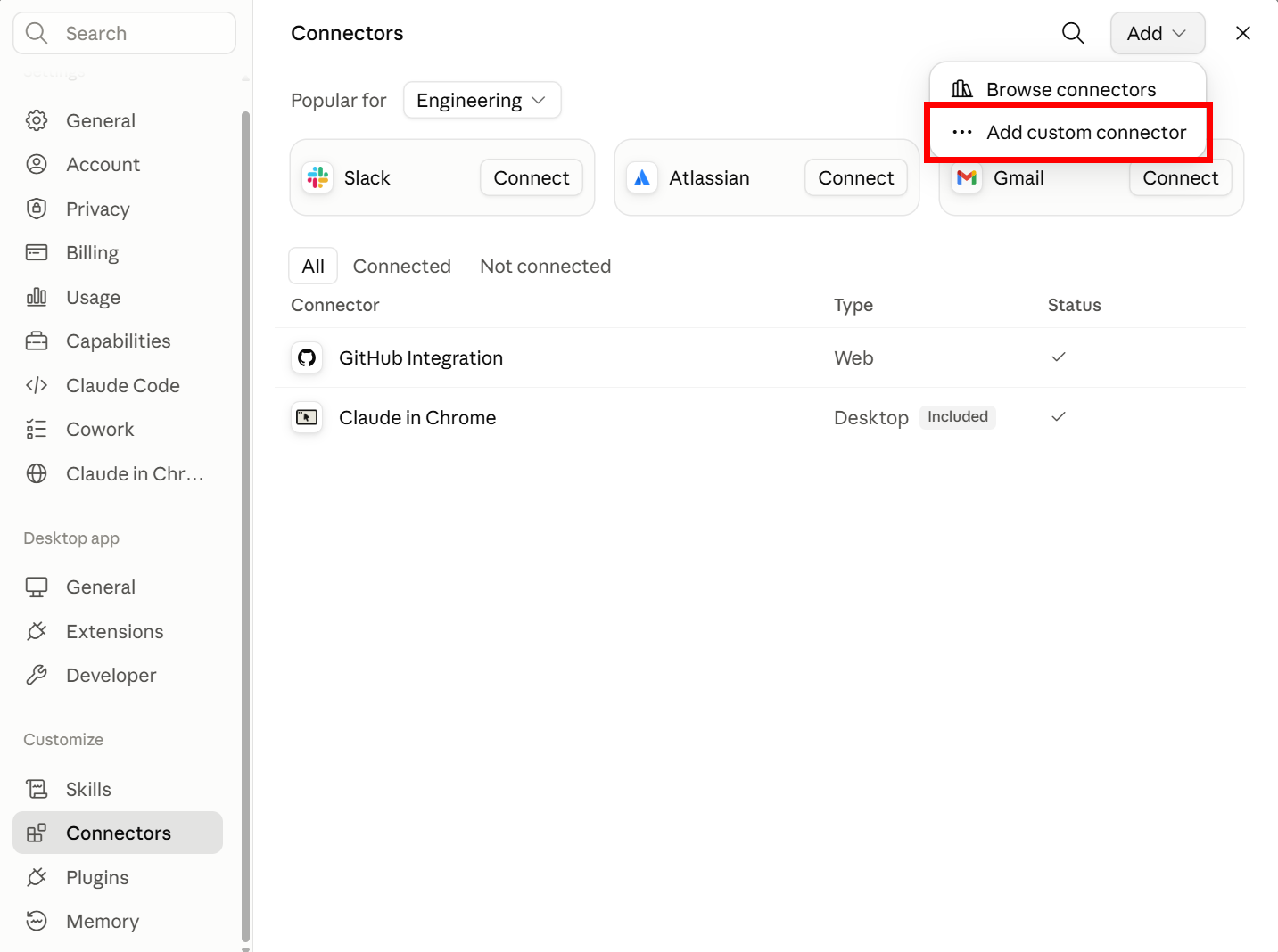
Select Connectors from the left sidebar, then click Add custom connector.
Name it editide and enter the server URL https://cloud.editide.com/mcp.
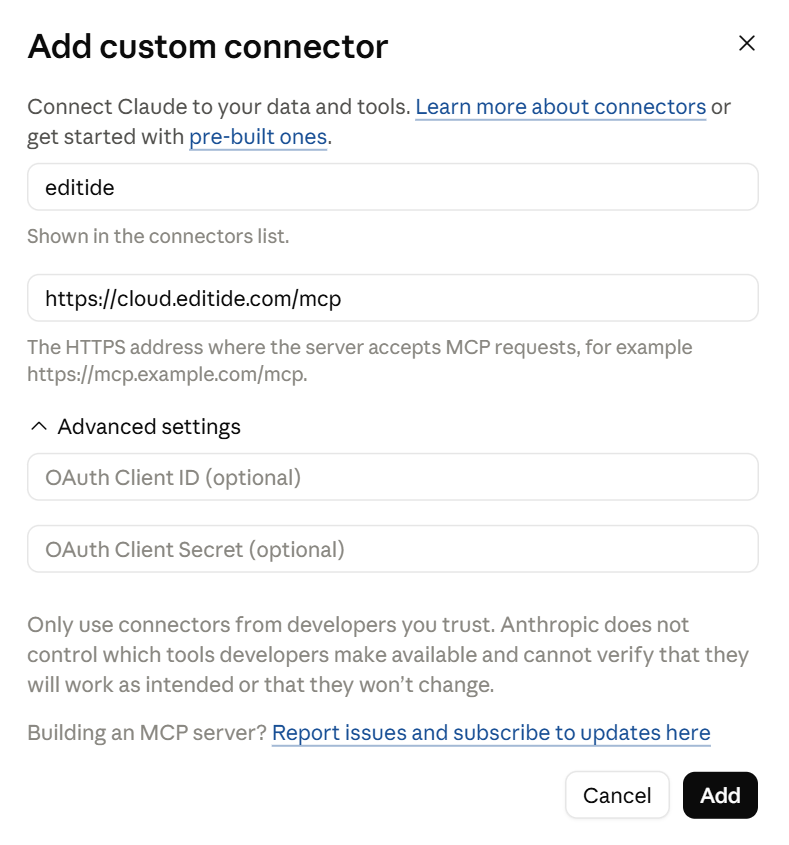
Click Add, then Connect — your browser opens to sign in with your editide account. Approve the connection.
Back in the Chat view, click the + in the bottom left of the input textbox and verify editide appears in your Connectors list.
You can now use editide to edit .pptx files you upload in Chat, or with local files accessible in Cowork and Code.
On a team plan? Install the extension with an API key
OAuth sign-in isn't available for team/org plans yet. The editide desktop extension carries an API key instead — it needs Claude Desktop (not the web-app) and an API key from the dashboard.
Select Extensions from the left sidebar.
If you don't have any extensions installed, you have to add an extension for the right setting to appear. Click Browse extensions and install any extension (pdf-viewer, Filesystem, etc.). If you already installed another extension, skip to step 4.
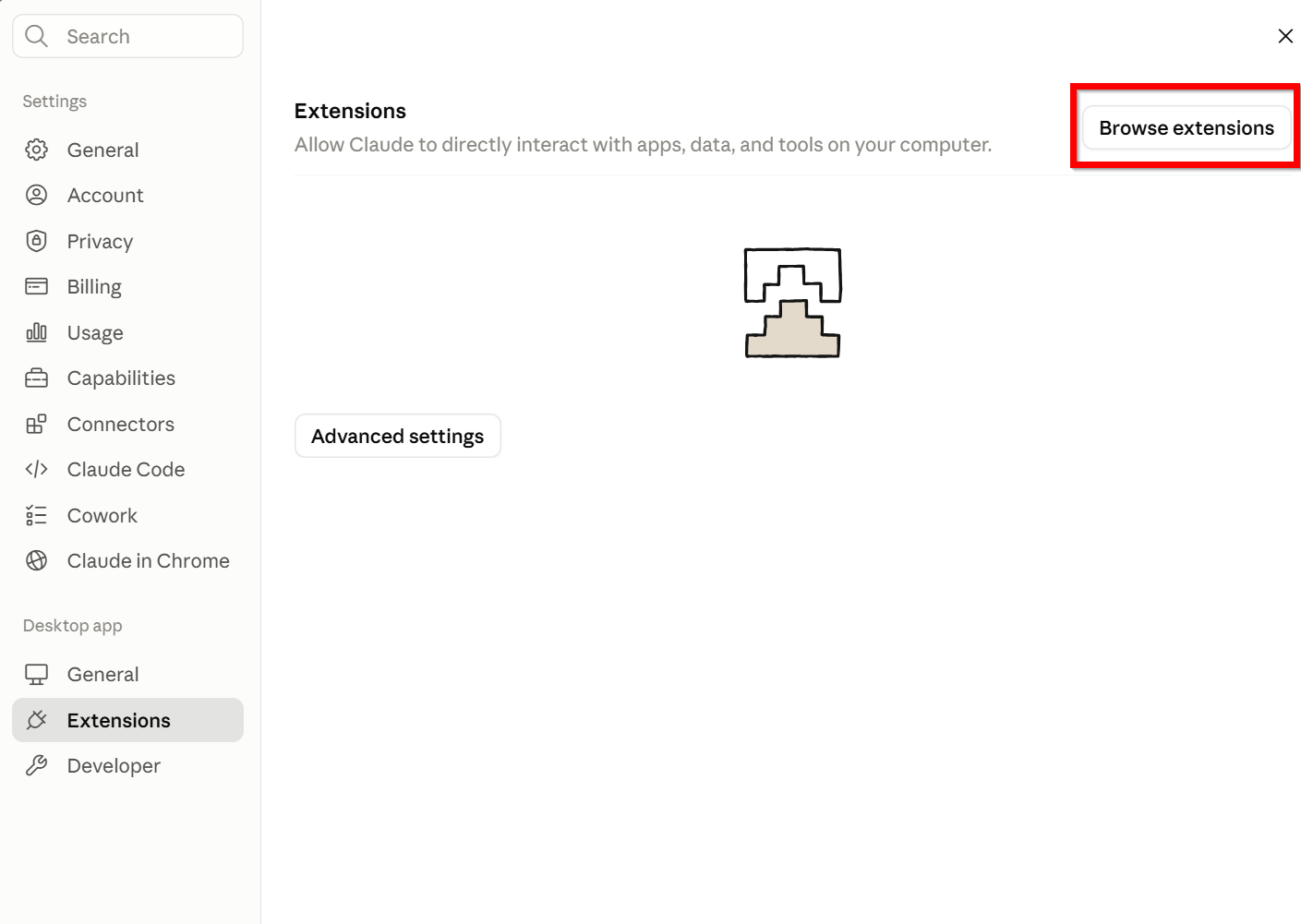
Close and go back to the Extensions panel where there should now be a Drag .MCPB or .DXT files here to install text below Advanced settings.
Download this editide.mcpb file.
Drag the file exactly into the area over Advanced settings or Drag .MCPB or .DXT files here to install.
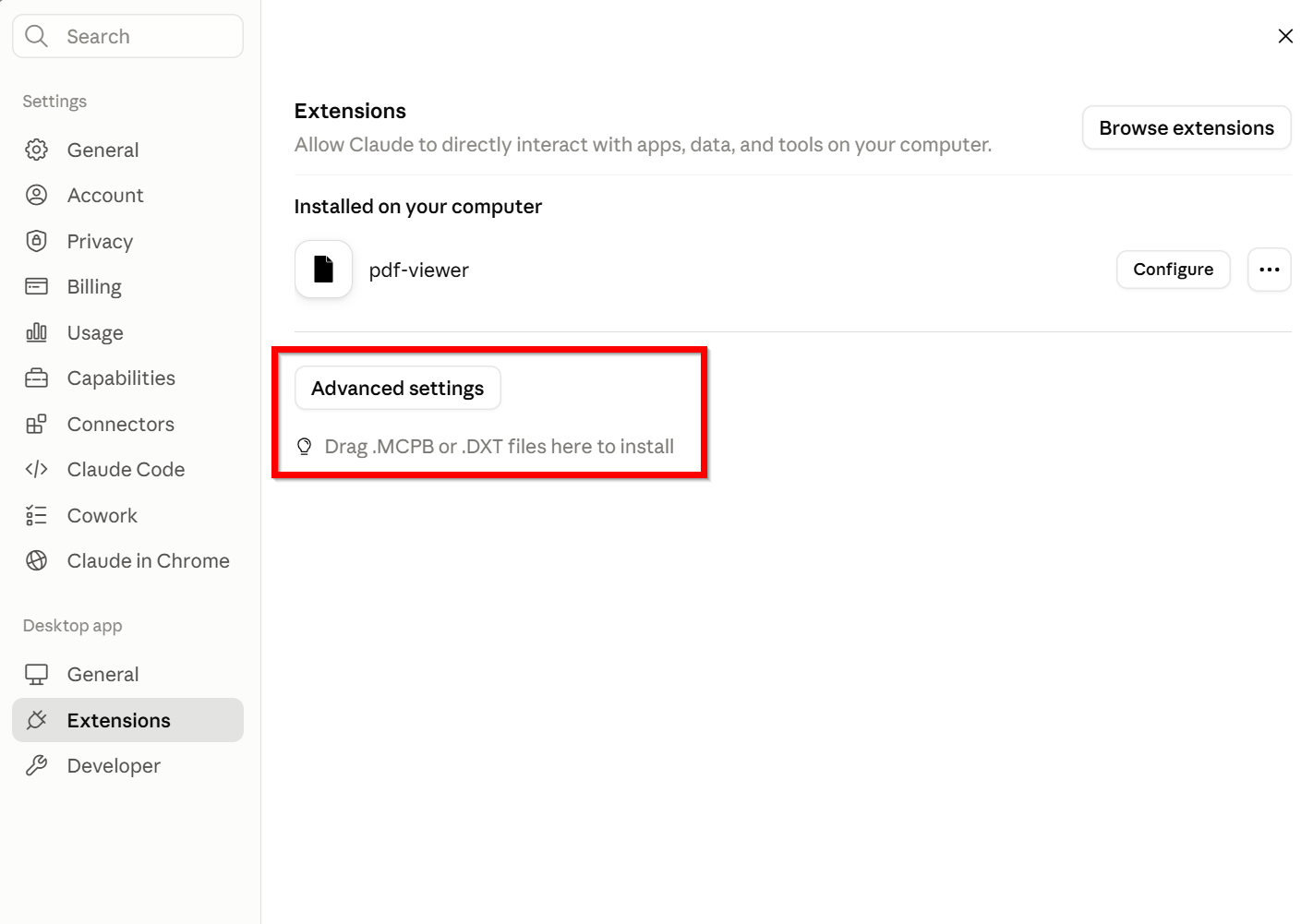
If you drag outside the area, the file gets copied to your chat instead.
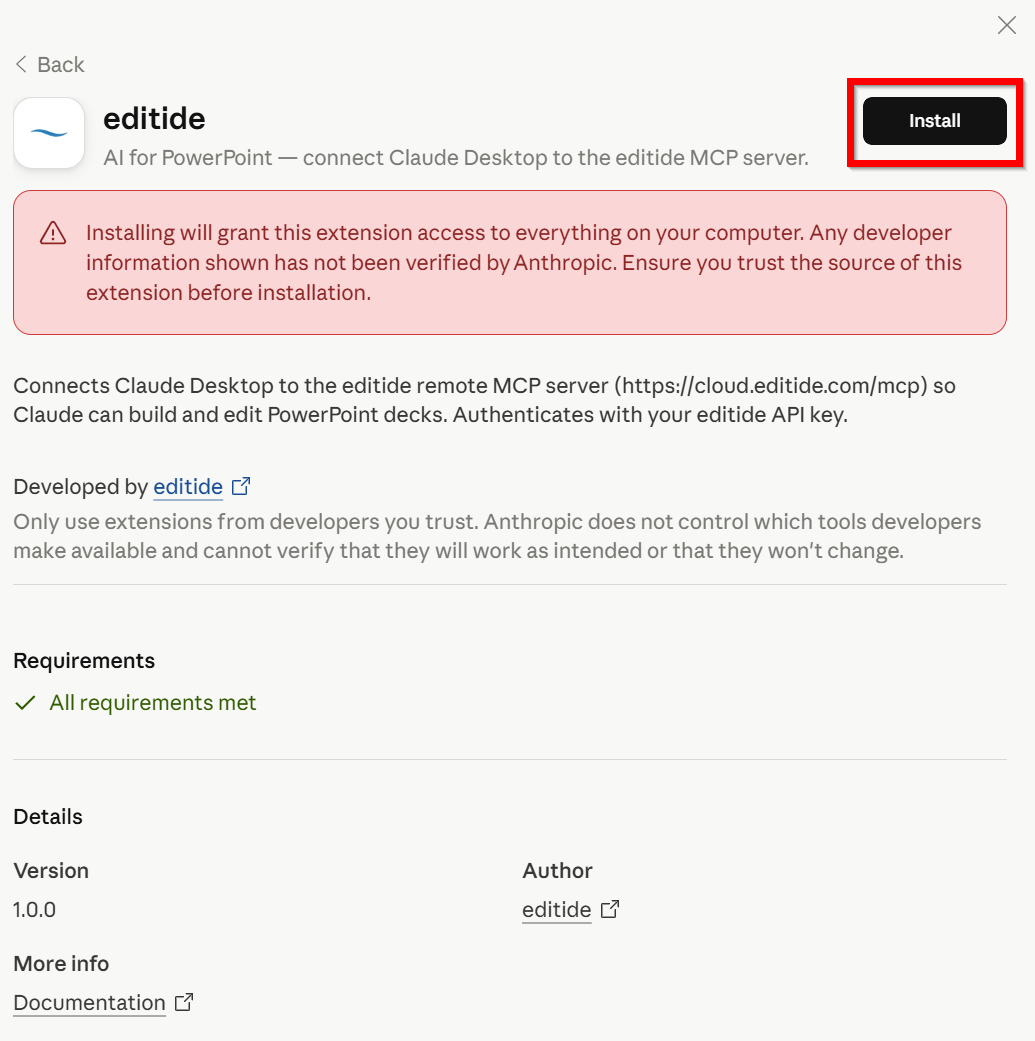
This confirmation pop-up will appear if you dragged into the correct area. Click Install and then confirm the new pop-up.
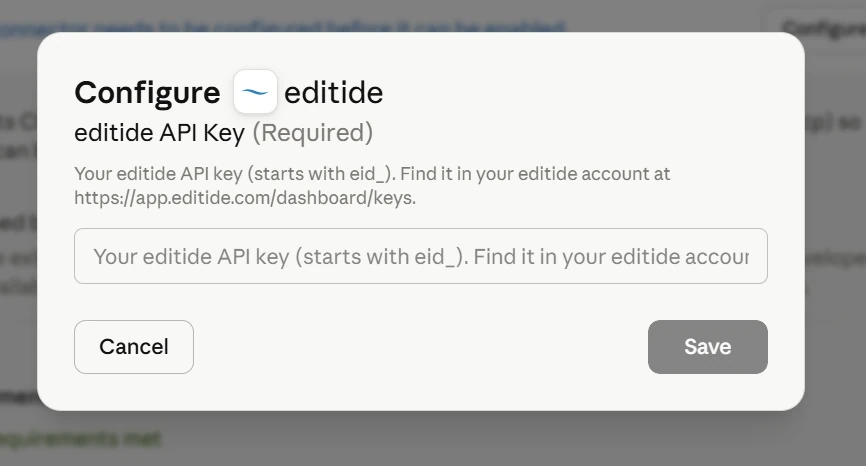
Enter your API key and click Save.
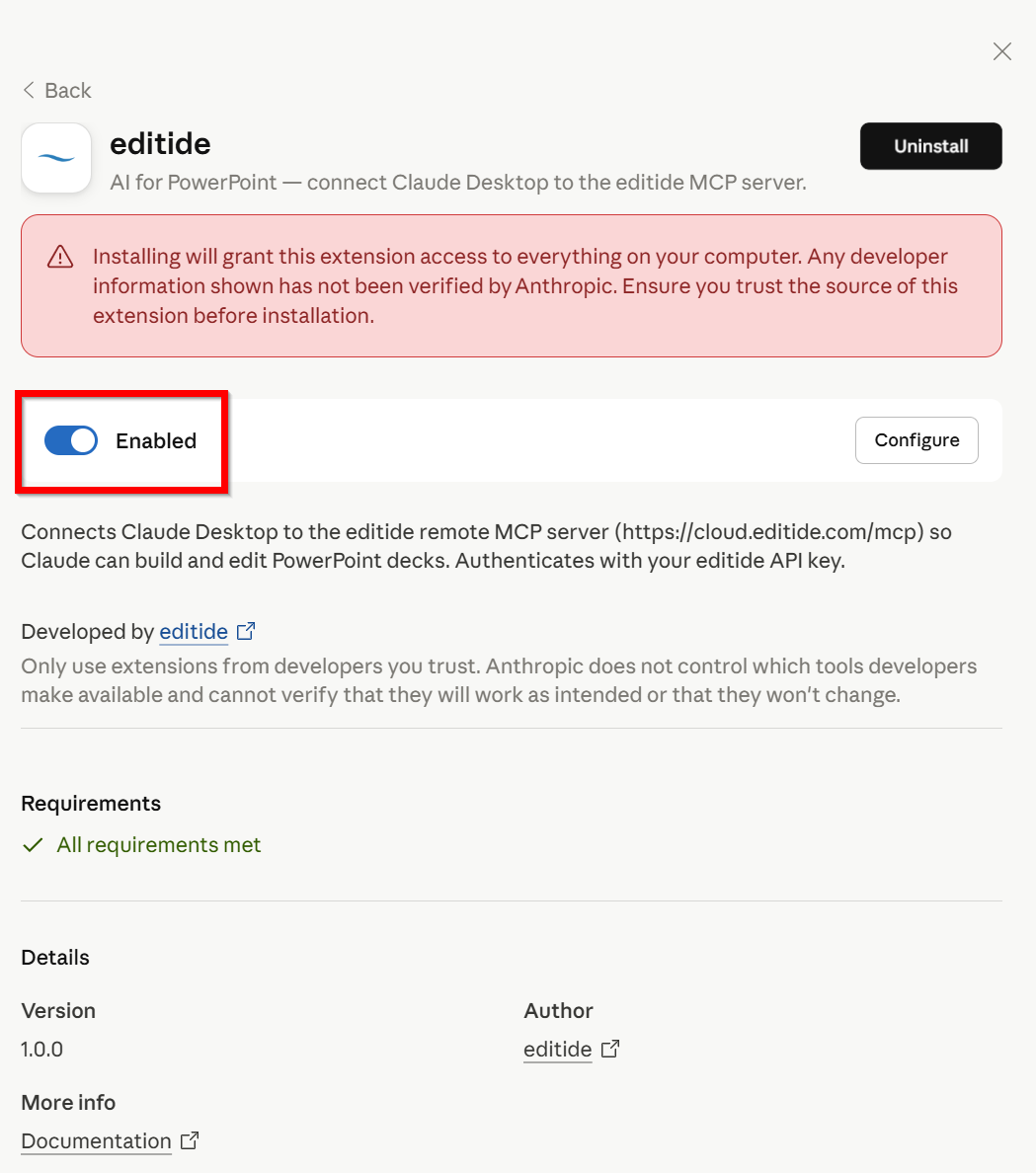
Click the toggle to Enable.
Go back to the Chat view, click the + in the bottom left of the input textbox, and verify editide appears in your Connectors list.
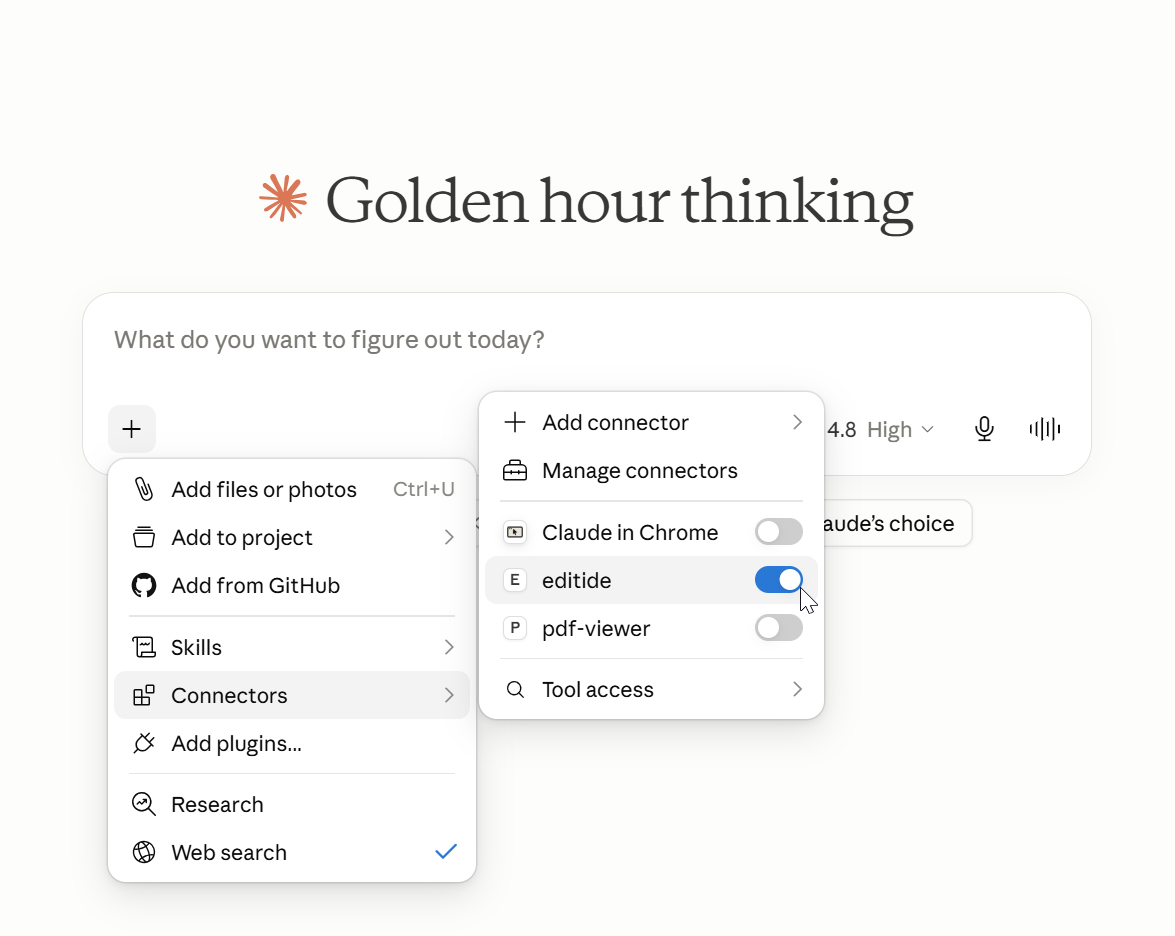
Refresh (ctrl + R) to make sure Claude establishes the connection.
Programmatic use
Connect to the editide MCP server with code.
When you are building your own agent and want it to read, edit, and render PowerPoint slides, you can attach the editide MCP server directly from the Anthropic Messages API or the OpenAI Responses API. Both providers act as the MCP client for you — they connect to the server, list its tools, and call them on the model's behalf.
Authentication
The MCP endpoint is https://cloud.editide.com/mcp. Authenticate with your editide API key from the dashboard — the same key works for the REST API and MCP. Each provider takes the key in a different field:
| Provider | How to pass the key |
|---|---|
| Anthropic Messages API | authorization_token: "eid_your_key_here" on the MCP server entry (sent as a Bearer token) |
| OpenAI Responses API | headers: { "X-Api-Key": "eid_your_key_here" } on the MCP tool |
The model has no access to your local filesystem. Upload your .pptx through the REST API first to get a file_id, then reference that id in your prompt. Download the finished deck once the model is done.
Anthropic
Attach editide through the MCP connector on the Messages API. The connector needs the beta header anthropic-beta: mcp-client-2025-11-20, an mcp_servers entry with the connection details, and an mcp_toolset in tools that references the server by name.
curl https://api.anthropic.com/v1/messages \
  -H "Content-Type: application/json" \
  -H "X-Api-Key: $ANTHROPIC_API_KEY" \
  -H "anthropic-version: 2023-06-01" \
  -H "anthropic-beta: mcp-client-2025-11-20" \
  -d '{
    "model": "claude-opus-5",
    "max_tokens": 4000,
    "messages": [
      {
        "role": "user",
        "content": "Add a closing Key Takeaways slide to presentation file_abc123."
      }
    ],
    "mcp_servers": [
      {
        "type": "url",
        "url": "https://cloud.editide.com/mcp",
        "name": "editide",
        "authorization_token": "eid_your_key_here"
      }
    ],
    "tools": [
      {
        "type": "mcp_toolset",
        "mcp_server_name": "editide"
      }
    ]
  }'
OpenAI
Attach editide with the mcp built-in tool type on the Responses API. Setting require_approval to never lets the model call editide tools without pausing for your approval — only do this for servers you trust.
curl https://api.openai.com/v1/responses \
  -H "Content-Type: application/json" \
  -H "Authorization: Bearer $OPENAI_API_KEY" \
  -d '{
    "model": "gpt-5",
    "tools": [
      {
        "type": "mcp",
        "server_label": "editide",
        "server_description": "Read, edit, and render PowerPoint (.pptx) presentations.",
        "server_url": "https://cloud.editide.com/mcp",
        "headers": {
          "X-Api-Key": "eid_your_key_here"
        },
        "require_approval": "never"
      }
    ],
    "input": "Add a closing Key Takeaways slide to presentation file_abc123."
}'Overview
Every editide capability is a tool: a function with a defined JSON input schema. Call one directly over REST, or let an agent invoke it over MCP.
Schemas
editide is built for AI agents first. Every tool ships a complete, machine-readable schema designed to be consumed by a model — GET /api/tools returns it unfiltered, exactly as an agent sees it.
curl https://cloud.editide.com/api/toolsThese pages are the human-friendly version of that schema: organized, simplified, and written to read well. They won't match the raw output word-for-word, and if the two ever differ, the API is the source of truth.
Over MCP, your agent reads these schemas automatically once the server is connected — you never wire up tools by hand.
Catalog
Editing
| edit_slide | Add, modify, and delete elements — text, shapes, pictures, charts, tables, and more. |
Reading
| list_slides | List every slide with its index and title. |
| read_slide | Read a slide — or a layout or master — as structured JSON. |
| read_element | Drill into a single element for its full properties and styling. |
| get_slide_screenshot | Render a slide to an image for visual context. |
| search_presentation | Find content across the deck with a regex. |
Slides
| add_slide | Add a new slide from a chosen layout. |
| move_slide | Reorder a slide within the deck. |
| copy_slide | Duplicate a slide, within a deck or across presentations. |
| delete_slides | Remove one or more slides. |
Themes, masters & layouts
| list_slide_layouts | Discover the layouts and designs a deck offers, with their ids and the slides using them. |
| apply_theme | Move some or all slides onto another design in the deck. |
| set_slide_layout | Move a single slide onto a different layout. |
| edit_theme | Change a theme's colors and fonts; every slide that follows the theme updates. |
| create_master | Add a design to the deck by copying a master with its layouts and theme. |
| create_layout | Add a layout: copy one that works, start from nothing, or draft one from a finished slide. |
| delete_layout | Remove an unused layout. |
| delete_master | Remove a design and all of its layouts. |
Importing data
| import_data_to_chart | Pull cells from Excel or CSV straight into a chart. |
| import_data_to_table | Build or populate a table from JSON, CSV, or Excel. |
Files
| view_image_file | Load an uploaded image for visual analysis. |
| view_image_element | View a picture embedded in a slide. |
| view_pdf | Read a PDF's contents. |
| view_excel | View a spreadsheet as a table. |
| search_excel | Find cells matching a query in a spreadsheet. |
| get_excel_data_ranges | Map every data region in a spreadsheet. |
| screenshot_excel_range | Capture a formatted Excel range as an image. |
Media
| insert_visual | Search a picture source and place the match — a stock photo, an icon, or a company logo. |
Calling over REST
Every tool is invoked with POST /api/tools/{tool_name} using the tool's input as the JSON body.
curl https://cloud.editide.com/api/tools/read_slide \
  -H "X-Api-Key: eid_your_key_here" \
  -H "Content-Type: application/json" \
  -d '{"presentation_id": "your_presentation_id", "slide_index": 1, "mode": "summary"}'
Over MCP you don't call this endpoint directly. Your agent invokes the tool through its MCP client with the same input shape.
Reading slides
Inspect a presentation's structure and content.
list_slides
Lists every slide in the presentation with its 1-based index and title.
ID of the loaded presentation to target.
curl https://cloud.editide.com/api/tools/list_slides \
  -H "X-Api-Key: eid_your_key_here" \
  -H "Content-Type: application/json" \
  -d '{
    "presentation_id": "your_presentation_id"
  }'
read_slide
Reads a slide's content as structured JSON. It can also read a layout or master — address one directly, or set target to walk up from a slide. Start with mode: "summary" to explore, drill into one element with read_element, and read full before editing.
1-based index of the slide to read. Omit when addressing by layout_name, layout_id, or theme_name.
Address a layout by name. Names can repeat across designs — prefer layout_id.
Address a layout by its id from list_slide_layouts. Ids are unique, but PowerPoint renumbers them on save — read them fresh each turn.
Alone, addresses a design and so its master. Alongside layout_name, picks which design's layout you mean.
summary — a light element map: each element's type, id, position, size, and placeholder role, plus one per-type hint (text preview, chart type and title, table dimensions, picture alt text), no styling. full (default) — everything, with styling and positions.
Level to read, walking up from the address: slide, layout, or master. Defaults to the level you addressed.
ID of the loaded presentation to target.
To find a slide, use search_presentation rather than reading several. Element ids returned are ids on whichever surface you name — see Layouts & masters.
curl https://cloud.editide.com/api/tools/read_slide \
  -H "X-Api-Key: eid_your_key_here" \
  -H "Content-Type: application/json" \
  -d '{
    "presentation_id": "your_presentation_id",
    "slide_index": 3,
    "mode": "summary"
  }'
read_element
Reads a single element by ID, returning its full properties, styling, and content — the drill-down after a summary read.
It addresses like read_slide — a slide by index, or a layout or master directly — and placeholders are readable by id like any other element.
1-based index of the slide containing the element. Omit when addressing by layout_name, layout_id, or theme_name.
ID of the element to read (from read_slide on the same surface).
Address a layout by name. Names can repeat across designs — prefer layout_id.
Address a layout by its id from list_slide_layouts. Ids are unique, but PowerPoint renumbers them on save — read them fresh each turn.
Alone, addresses a design and so its master. Alongside layout_name, picks which design's layout you mean.
Level to read, walking up from the address: slide, layout, or master. Defaults to the level you addressed.
ID of the loaded presentation to target.
curl https://cloud.editide.com/api/tools/read_element \
  -H "X-Api-Key: eid_your_key_here" \
  -H "Content-Type: application/json" \
  -d '{
    "presentation_id": "your_presentation_id",
    "slide_index": 3,
    "element_id": 5
  }'
get_slide_screenshot
Renders a slide to an image, providing a visual ground truth alongside the structured data from read_slide.
1-based index of the slide to capture.
ID of the loaded presentation to target.
curl https://cloud.editide.com/api/tools/get_slide_screenshot \
  -H "X-Api-Key: eid_your_key_here" \
  -H "Content-Type: application/json" \
  -d '{
    "presentation_id": "your_presentation_id",
    "slide_index": 3
  }'
search_presentation
Searches across slides for content matching a regex, returning a compact list of matches scoped by slide numbers, element types, and element IDs.
Regex to search for. Prefix with (?i) for case-insensitive matching.
Where to search: all (default), text, charts, or tables.
Slides to search, e.g. 1-10, 5,8,12, 3-5,10. Omit to search all.
ID of the loaded presentation to target.
curl https://cloud.editide.com/api/tools/search_presentation \
  -H "X-Api-Key: eid_your_key_here" \
  -H "Content-Type: application/json" \
  -d '{
    "presentation_id": "your_presentation_id",
    "pattern": "(?i)revenue",
    "scope": "text"
}'Slides
Add, move, copy, and delete slides.
add_slide
Adds an empty slide with a given layout. Layout names vary by deck — call list_slide_layouts first, as common defaults aren't guaranteed to exist.
Exact layout name as it appears in the deck. Names can repeat across designs — prefer layout_id.
Address a layout by its id from list_slide_layouts. Ids are unique, but PowerPoint renumbers them on save — read them fresh each turn.
1-based insert position. Appends to the end if omitted.
Target a specific master when a layout name is shared across themes.
ID of the loaded presentation to target.
curl https://cloud.editide.com/api/tools/add_slide \
  -H "X-Api-Key: eid_your_key_here" \
  -H "Content-Type: application/json" \
  -d '{
    "presentation_id": "your_presentation_id",
    "layout_name": "Title and Content"
  }'
move_slide
Moves a slide from one position to another within the presentation.
1-based index of the slide to move.
1-based destination position.
ID of the loaded presentation to target.
curl https://cloud.editide.com/api/tools/move_slide \
  -H "X-Api-Key: eid_your_key_here" \
  -H "Content-Type: application/json" \
  -d '{
    "presentation_id": "your_presentation_id",
    "from_index": 5,
    "to_index": 2
  }'
copy_slide
Creates a copy of a slide at a given position, within a deck or across presentations.
1-based index of the slide to copy.
1-based position for the copy. Defaults to (source_index + 1) if omitted.
Source deck. Defaults to presentation_id.
Destination layout to apply for cross-presentation copies. Prefer layout_id when names repeat.
Destination layout by id, from list_slide_layouts.
Target a specific master in the destination deck.
Destination deck.
curl https://cloud.editide.com/api/tools/copy_slide \
  -H "X-Api-Key: eid_your_key_here" \
  -H "Content-Type: application/json" \
  -d '{
    "presentation_id": "your_presentation_id",
    "source_index": 4,
    "destination_index": 6
  }'
delete_slides
Deletes the specified slides from the presentation.
1-based indices of the slides to delete.
ID of the loaded presentation to target.
curl https://cloud.editide.com/api/tools/delete_slides \
  -H "X-Api-Key: eid_your_key_here" \
  -H "Content-Type: application/json" \
  -d '{
    "presentation_id": "your_presentation_id",
    "slide_indices": [2, 5]
  }'
Layout and theme names come from list_slide_layouts, documented with the template tools.
Themes, masters & layouts
Discover a deck's designs, restyle them, move slides between them, and build or remove the templates underneath.
A deck's template layer is made of designs: each design is a slide master, the layouts under it, and the theme (colors and fonts) they share. Slides bind to layouts; layouts inherit from their master; the theme styles all of it. The theme name is the handle every tool uses to address a design — discover names, layout ids, and which slides sit where with list_slide_layouts.
These tools operate on that layer. To edit the contents of a layout or master — placeholders, backgrounds, text styles — use edit_slide with a target, described in Layouts & masters.
list_slide_layouts
Lists all layouts grouped by slide master (theme), each with its id and the slides that sit on it. Layouts with no slides are normal — decks often carry unused layouts, and two can share a name. Call this to discover layout and theme names (and ids) before add_slide, copy_slide, or any of the tools below.
ID of the loaded presentation to target.
To inspect a layout's placeholder structure, read it directly: read_slide with layout_name or layout_id (or a slide_index plus target: "layout") — see Reading slides.
curl https://cloud.editide.com/api/tools/list_slide_layouts \
  -H "X-Api-Key: eid_your_key_here" \
  -H "Content-Type: application/json" \
  -d '{
    "presentation_id": "your_presentation_id"
  }'
apply_theme
Moves slides onto another design that already exists in the deck, keeping each slide's content and layout role in place. Placeholders re-match against the target design's layouts, and the slides pick up its colors and fonts.
Target design — exact name from list_slide_layouts. Must already exist in the deck.
1-based slides to move. Omit to apply to all slides.
ID of the loaded presentation to target.
curl https://cloud.editide.com/api/tools/apply_theme \
  -H "X-Api-Key: eid_your_key_here" \
  -H "Content-Type: application/json" \
  -d '{
    "presentation_id": "your_presentation_id",
    "theme_name": "Gallery"
  }'
set_slide_layout
Moves a single slide onto a different layout — the per-slide version of apply_theme. Placeholders match by exact address first, then by family (a centered title is a title; subtitle, body, and typed content boxes are one family). Anything with no counterpart keeps its geometry rather than collapsing to the master's. Moving to a layout in another design also re-resolves the slide's colors and fonts.
1-based index of the slide to move.
Layout to put it on. Names can repeat across designs — prefer layout_id.
Address the layout by its id from list_slide_layouts.
Which design, when the deck has several — every theme has a "Title Slide".
ID of the loaded presentation to target.
curl https://cloud.editide.com/api/tools/set_slide_layout \
  -H "X-Api-Key: eid_your_key_here" \
  -H "Content-Type: application/json" \
  -d '{
    "presentation_id": "your_presentation_id",
    "slide_index": 4,
    "layout_name": "Two Content"
  }'
edit_theme
Changes a theme's colors and fonts. Every slide, layout, and chart that follows the theme updates in one step; anything holding a literal color or font stays as it is.
Exact theme name as shown by list_slide_layouts.
Slot → hex map, e.g. { "accent1": "#4472C4" }. Slots: dk1, lt1, dk2, lt2, accent1–accent6, hlink, folHlink. The roles tx1, bg1, tx2, bg2 are also accepted and resolve to the slot they map to on this deck. Unlisted slots keep their color.
Theme heading font — a literal family name, e.g. Aptos Display.
Theme body font — e.g. Aptos.
Also remove per-chart theme snapshots on this theme's slides, so charts pasted in from other decks follow the theme. Defaults to false.
ID of the loaded presentation to target.
A theme background is set on the master, not through edit_theme — see Backgrounds.
curl https://cloud.editide.com/api/tools/edit_theme \
  -H "X-Api-Key: eid_your_key_here" \
  -H "Content-Type: application/json" \
  -d '{
    "presentation_id": "your_presentation_id",
    "theme_name": "Office Theme",
    "colors": {
      "accent1": "#0F6CBD",
      "accent2": "#77B900"
    },
    "major_font": "Aptos Display",
    "minor_font": "Aptos"
  }'
create_master
Adds a design to the deck by copying an existing master together with its layouts and its own copy of the theme. This is also how a theme is created — a theme has no independent existence in the file, so copying the master is what brings a new one into the deck. The new design starts as a duplicate; restyle it with edit_theme and reshape its layouts with edit_slide.
Theme name of the master to copy. Omit to copy the first master.
Name for the new design's theme — the handle every other tool uses to address it. Must not already exist. Omit to number it after the source.
ID of the loaded presentation to target.
curl https://cloud.editide.com/api/tools/create_master \
  -H "X-Api-Key: eid_your_key_here" \
  -H "Content-Type: application/json" \
  -d '{
    "presentation_id": "your_presentation_id",
    "new_theme_name": "Dark Variant"
  }'
create_layout
Adds a layout to a design, from one of three sources: a copy of an existing layout with its placeholders, an empty one to build up, or a finished slide to draft from. Drafting turns a slide you already built into a reusable layout — its text becomes text placeholders, charts and tables become content areas, and everything else comes across as fixed decoration, keeping the slide's stacking order. theme_name says which design the new layout joins in every mode; omitted, it stays on its source's design. See Layouts & masters.
Slide to draft the layout from, 1-based.
Layout to copy, including its placeholders. A name more than one layout uses is refused — use source_layout_id. Omit every source for an empty layout.
Layout to copy, by id from list_slide_layouts.
Name for the new layout. Must not already exist under the destination design.
Which design the new layout joins. Omit to keep the source's design, or the deck's main one when starting empty. A theme name two designs share is refused rather than guessed.
Drafting only. {element_id, role, prompt?} entries forcing an element's role — how you choose which text becomes the title — with optional prompt words for the empty box. Prompts are refused on date_and_time and slide_number, which show fields.
Drafting only. Elements copied across as fixed decoration rather than placeholders.
Drafting only. Elements left off the layout entirely.
ID of the loaded presentation to target.
curl https://cloud.editide.com/api/tools/create_layout \
  -H "X-Api-Key: eid_your_key_here" \
  -H "Content-Type: application/json" \
  -d '{
    "presentation_id": "your_presentation_id",
    "source_layout_name": "Title and Content",
    "new_layout_name": "Title and Chart"
}'curl https://cloud.editide.com/api/tools/create_layout \
-H "X-Api-Key: eid_your_key_here" \
-H "Content-Type: application/json" \
-d '{
"presentation_id": "your_presentation_id",
"source_slide_index": 4,
"new_layout_name": "Quarterly Summary",
"theme_name": "House Style",
"placeholder_roles": [
{"element_id": 7, "role": "title"},
{"element_id": 12, "role": "text",
"prompt": "Add the headline metric"}
],
"static_element_ids": [3]
}'delete_layout
Removes a layout from its design. Refused while any slide uses the layout — the error names the slides, so move them first with set_slide_layout.
Exact name of the layout to remove. Prefer layout_id when names repeat.
Address the layout by its id from list_slide_layouts.
Pick a master when the deck has several.
ID of the loaded presentation to target.
curl https://cloud.editide.com/api/tools/delete_layout \
  -H "X-Api-Key: eid_your_key_here" \
  -H "Content-Type: application/json" \
  -d '{
    "presentation_id": "your_presentation_id",
    "layout_name": "Name Card"
  }'
delete_master
Removes a design — the master, all of its layouts, and its theme. Refused while any slide sits on one of its layouts, and refused for the deck's last master.
Theme name of the design to remove.
ID of the loaded presentation to target.
curl https://cloud.editide.com/api/tools/delete_master \
  -H "X-Api-Key: eid_your_key_here" \
  -H "Content-Type: application/json" \
  -d '{
    "presentation_id": "your_presentation_id",
    "theme_name": "Old Branding"
}'Importing data
Load data from Excel, CSV, JSON files straight into charts and tables.
These tools read from an attachment_id — upload the file first via Attachments. Inline data on import_data_to_table skips uploads entirely — see that tool.
import_data_to_chart
Pulls cell ranges from Excel or CSV into a chart, mapped to categories, series, and values. Omit element_id to create a new chart, set it to replace an existing chart's data, or combine it with the append parameters to add a single category or series.
An uploaded .xlsx or .csv.
1-based slide to place or find the chart on.
Defaults to the first sheet.
Existing chart to replace or append. Omit to create a new chart.
New charts only: clustered_column, stacked_column, percent_stacked_column, clustered_bar, stacked_bar, percent_stacked_bar, line, stacked_line, percent_stacked_line, pie, doughnut. Defaults to line.
Cells holding the category labels — a single row or column.
Cells holding the series names, orthogonal to category_range.
Cells holding the values, totaling category × series count.
One cell with the new category/series label (append mode).
Values for the appended category or series.
category or series, to disambiguate a square append.
Per-series chart_type / secondary_axis overrides.
ID of the loaded presentation the chart lives in.
First upload the data file to get an attachment_id:
curl https://cloud.editide.com/api/presentations/your_presentation_id/attachments \
  -H "X-Api-Key: eid_your_key_here" \
  -F file=@q3.xlsx
# → { "attachment_id": "a1b2c3d4-...", "filename": "q3.xlsx" }
Then pass that id as attachment_id:
curl https://cloud.editide.com/api/tools/import_data_to_chart \
  -H "X-Api-Key: eid_your_key_here" \
  -H "Content-Type: application/json" \
  -d '{
    "presentation_id": "your_presentation_id",
    "attachment_id": "a1b2c3d4-...",
    "slide_index": 4,
    "chart_type": "clustered_column",
    "category_range": "B2:D2",
    "series_range": "A4,A5",
    "values_range": "B4:D4,B5:D5"
  }'
import_data_to_table
Imports structured data into a table from inline JSON or a file. Create a new table, populate an existing one with element_id, or clone a styled template_element_id.
Use data to pass rows inline — no upload needed, which makes it the simplest path over REST. Use attachment_id instead to pull from an uploaded .json, .csv, or .xlsx; the two are mutually exclusive.
1-based slide containing or receiving the table.
Inline JSON to import — no upload needed. Mutually exclusive with attachment_id.
An uploaded .json, .csv, or .xlsx. Mutually exclusive with data.
Existing table to populate. Omit to create a new table.
Table to clone structure and style from.
Table width in points. Recommended; required for new tables.
Table height in points. Recommended; required for new tables.
Left edge of a new table, in points.
Top edge of a new table, in points.
Sheet to read from an .xlsx source. Defaults to the first.
Cell range to read from an .xlsx source.
Apply the table style's header band to the first row.
Apply alternating row banding.
ID of the loaded presentation to target.
A few finer layout controls (header-font maximization, variable row heights, template slide index) are omitted here — pull the full schema from GET /api/tools.
curl https://cloud.editide.com/api/tools/import_data_to_table \
  -H "X-Api-Key: eid_your_key_here" \
  -H "Content-Type: application/json" \
  -d '{
    "presentation_id": "your_presentation_id",
    "slide_index": 4,
    "target_width": 600,
    "target_height": 200,
    "first_row": true,
    "data": "{\"columns\":[\"Region\",\"Revenue\"],\"rows\":[[\"EMEA\",\"4.2M\"],[\"APAC\",\"3.1M\"]]}"
}'Media
Insert stock photos, icons and company logos onto a slide.
insert_visual
Searches a picture source and inserts the best match onto a slide, in one call. kind selects the source: stock photography, an icon library, or a company logo.
Replaces insert_logo and insert_icon, which are retired — calls to those names now fail.
photo, icon, or logo. Required.
What to search for. photo: describe the scene, e.g. open plan office. icon: a keyword, e.g. home, arrow right. logo: a company name, e.g. Nike.
1-based slide to insert onto.
Which match to take, 0-based. 0 (default) is the best match; raise it to step to the next candidate when the first is wrong. Ordering is best-effort — a source may rank differently between calls.
Insert onto a layout or master instead of a slide — address it with layout_name / layout_id / theme_name, as in edit_slide. A logo on the master appears on every slide.
A position — { left, top, z_index, rotation, … } in points.
A size — { width, height } in points. Provide one dimension to keep aspect ratio. For photo, giving both lets the source match the shape of the space.
Defaults to true.
icon only. fluent (default), material_design, tabler, phosphor, lucide, or carbon.
icon only. filled or regular.
icon only. A color — { "scheme": "accent1" } or { "rgb": "#4472C4" }. Defaults to black. Scheme colors keep the icon tracking the deck's theme.
ID of the loaded presentation to target.
The three icon-only parameters are refused rather than ignored when sent with kind: photo or kind: logo, so a call that expected them to apply hears about it.
Logos are sourced from Brandfetch, icons from Iconify, and photos from Pexels. Photo search depends on the deployment having a Pexels key configured; where it doesn't, insert_visual serves icons and logos and says so when asked for a photo.
A photo:
curl https://cloud.editide.com/api/tools/insert_visual \
  -H "X-Api-Key: eid_your_key_here" \
  -H "Content-Type: application/json" \
  -d '{
    "presentation_id": "your_presentation_id",
    "kind": "photo",
    "query": "open plan office",
    "slide_index": 2,
    "position": { "left": 60, "top": 120 },
    "size": { "width": 400, "height": 250 }
  }'
Not the right one? Repeat the call with "index": 1 for the next candidate, and screenshot the slide to see what landed.
An icon:
curl https://cloud.editide.com/api/tools/insert_visual \
  -H "X-Api-Key: eid_your_key_here" \
  -H "Content-Type: application/json" \
  -d '{
    "presentation_id": "your_presentation_id",
    "kind": "icon",
    "query": "check",
    "slide_index": 2,
    "icon_set": "lucide",
    "color": { "scheme": "accent1" }
  }'
A logo is the same call with "kind": "logo" and a company name as the query. It takes only the shared parameters — no icon_set, style or color.
Files
Inspect images, PDFs, and spreadsheets to inform slide edits.
Each tool takes the attachment_id of a file you've uploaded first (see Attachments).
view_image_file
Loads an uploaded image for visual analysis and returns a reference to use in edit_slide. Accepts .png, .jpg, .jpeg, .gif, .webp.
An uploaded image.
curl https://cloud.editide.com/api/tools/view_image_file \
  -H "X-Api-Key: eid_your_key_here" \
  -H "Content-Type: application/json" \
  -d '{
    "attachment_id": "your_attachment_id"
  }'
view_image_element
Views the image embedded in a picture element on a slide.
1-based slide containing the picture.
ID of the picture element.
ID of the loaded presentation to target.
curl https://cloud.editide.com/api/tools/view_image_element \
  -H "X-Api-Key: eid_your_key_here" \
  -H "Content-Type: application/json" \
  -d '{
    "slide_index": 3,
    "element_id": 5,
    "presentation_id": "your_presentation_id"
  }'
view_pdf
Read a PDF's content.
An uploaded .pdf.
Page selection, e.g. 1-5 or 1,3,5. Omit to read all pages.
curl https://cloud.editide.com/api/tools/view_pdf \
  -H "X-Api-Key: eid_your_key_here" \
  -H "Content-Type: application/json" \
  -d '{
    "attachment_id": "your_attachment_id",
    "pages": "1-5"
  }'
view_excel
Reads an .xlsx or .csv file as a markdown table.
An uploaded .xlsx or .csv.
Defaults to the first sheet.
Cell range to read, e.g. C4:F20. Auto-detects if omitted.
Maximum data rows to return (default 15).
1-based offset into the data rows to start from.
curl https://cloud.editide.com/api/tools/view_excel \
  -H "X-Api-Key: eid_your_key_here" \
  -H "Content-Type: application/json" \
  -d '{
    "attachment_id": "your_attachment_id",
    "sheet_name": "Q3",
    "range": "C4:F20"
  }'
search_excel
Searches an .xlsx or .csv file for cells matching a query, returning matches with their sheet, cell reference, and context.
The uploaded .xlsx or .csv to search.
Text to search for. Substring match by default.
Limit the search to one sheet.
Maximum matches to return (default 20).
Interpret the query as a regular expression.
Require the whole cell to equal the query.
Bounding range to limit the search area.
curl https://cloud.editide.com/api/tools/search_excel \
  -H "X-Api-Key: eid_your_key_here" \
  -H "Content-Type: application/json" \
  -d '{
    "attachment_id": "your_attachment_id",
    "query": "Revenue"
  }'
get_excel_data_ranges
Maps an .xlsx or .csv file by detecting every data region on every sheet.
The uploaded .xlsx or .csv to map.
Limit the map to one sheet.
curl https://cloud.editide.com/api/tools/get_excel_data_ranges \
  -H "X-Api-Key: eid_your_key_here" \
  -H "Content-Type: application/json" \
  -d '{
    "attachment_id": "your_attachment_id"
  }'
screenshot_excel_range
Captures a screenshot of an Excel range as an image, returning a reference to use as a picture uri in edit_slide. Useful for exporting financial tables as rendered in Excel.
An uploaded .xlsx.
Cell range to capture, e.g. A1:H20.
Defaults to the first sheet.
Recolor numeric cells to black before capture.
curl https://cloud.editide.com/api/tools/screenshot_excel_range \
  -H "X-Api-Key: eid_your_key_here" \
  -H "Content-Type: application/json" \
  -d '{
    "attachment_id": "your_attachment_id",
    "range": "A1:H20"
}'Overview
Add, modify, and delete elements on a slide.
Slide object
editide represents PowerPoint slides as a collection of elements. Each element carries an id, a position, and a size, plus content and styling specific to its type.
Element types
| Text | Shapes containing text. |
| Shape | Rectangles, ellipses, lines, connectors, etc. No text content. |
| Picture | Images including SVG. |
| Chart | Native charts with editable data in an embedded Excel workbook. |
| Table | Native table containing cells with text. |
| Group | Contains other elements and moves them together. |
Call shape
| Parameter | Type | Description |
|---|---|---|
| presentation_id | string | ID of the loaded presentation to target. |
| slide_index | integer · optional | 1-based index of the slide to edit. Omit when addressing by layout_name, layout_id, or theme_name. |
| layout_name, layout_id, theme_name | string / integer · optional | Address a layout or master directly — see Layouts & masters. |
| target | string · optional | Level to edit, walking up from the address: slide (default), layout, or master. |
| slide | object | The slide object's contents — the element operations to apply, grouped by type. |
Operations
edit_slide calls can modify existing elements or add new ones. Modifying an element requires passing its id (discovered after a read_slide call). When adding a new element, omit the id (it's automatically assigned).
| Element type | Modify | Add |
|---|---|---|
| Text | text_elements | text_elements_to_add |
| Shape | shape_elements | shape_elements_to_add |
| Picture | picture_elements | picture_elements_to_add |
| Chart | chart_elements | chart_elements_to_add |
| Table | table_elements | table_elements_to_add |
| Placeholder | placeholders | placeholders_to_add |
| Group | group_elements | elements_to_group |
Placeholders exist on layouts and masters only — a slide fills placeholders rather than defining them.
Beyond the element type operations, the slide object also accepts these fields:
| Field | Type | Description |
|---|---|---|
| elements_to_delete | integer[] | IDs of any elements to delete, of any type. |
| elements_to_group | integer[][] | Lists of element IDs; each list becomes one group. |
| elements_to_ungroup | integer[] | IDs of groups to dissolve. The children survive, keeping their ids and geometry. |
| animations, animations_to_add, animations_to_delete | array | The slide's animation sequence — see Animations & transitions. |
| transition | object | How the slide arrives on screen — see Animations & transitions. |
| background | object | The surface's background — see Backgrounds below. |
| master_text_styles | object | The deck's default text styles. Master only — see Layouts & masters. |
| header_footer | object | Footer, date, and slide number visibility — see Layouts & masters. |
| name | string | Rename a layout or master. Layout and master only. |
| notes | object | Change the speaker notes text content. |
| clear_notes | boolean | Wipe all speaker notes. Wins over notes if both are set. |
A group_elements entry takes the group's id with a new position or size — the whole group moves, resizes, rotates or flips, and its children follow. Only elements sitting directly on the slide can be grouped; to add to an existing group, pass that group's id alongside the new members, which nests it. Placeholders, tables, and anything locked against grouping refuse, and one refused member cancels the whole group. Grouping drops the members' animations, as PowerPoint's own Group command does. Ungrouping hoists the children out with their ids and geometry intact, one level per call.
The read–edit loop
Modifying an element requires passing its id, so the usual flow is read first, then edit.
Read the slide. Call read_slide to get each element's id and current properties.
Build the operation. Put only the fields you want to change inside the matching elements list — omitted fields are left untouched.
Call edit_slide. Pass presentation_id, slide_index, and the slide object.
Elements with is_locked = true come from the layout or master, so a slide-level edit can't touch them. To change them, edit the surface that owns them: the same call with target: "layout" or target: "master" — see Layouts & masters.
Backgrounds
Every surface — slide, layout, and master — can carry a background. A slide with none inherits its layout's, and a layout with none inherits its master's, so setting the master's background restyles every slide that hasn't overridden it.
| Field | Type | Description |
|---|---|---|
| color | object | Solid fill — a color. |
| gradient | object | A gradient. Set color or gradient; color wins if both are sent. |
| picture_uri | string | Image URL or uploaded file to use as the background picture. Reads report picture_name for what is there now. |
| theme_style | integer | 1-based entry of the theme's Background Styles gallery. Set with color to pick a gallery background that keeps tracking the theme — setting color or gradient alone detaches it. |
| remove | boolean | Remove this surface's own background so it inherits again — a slide from its layout, a layout from its master. |
curl https://cloud.editide.com/api/tools/edit_slide \
  -H "X-Api-Key: eid_your_key_here" \
  -H "Content-Type: application/json" \
  -d '{
        "presentation_id": "your_presentation_id",
        "theme_name": "Office Theme",
        "target": "master",
        "slide": {
          "background": {"picture_uri": "https://example.com/texture.png"}
        }
      }'
Templates
When adding an element, you can clone an existing one instead of specifying every property. Set template_element_id (optionally with template_slide_index / template_presentation_id to point at another slide or deck) and the new element inherits its geometry, style, and formatting. This is the most reliable way to stay visually consistent with the deck's fonts, colors, and sizing.
The source can also live on a layout or master: address it with template_layout_name / template_layout_id / template_theme_name, or set template_target to walk up from template_slide_index — so a logo on a layout can be copied onto a slide, another layout, or a different deck.
Placeholder boxes (titles, subtitles, body text) can't be copied — the response explains why and suggests creating a new placeholder instead. A chart, table, or picture that merely fills a placeholder slot copies fine, arriving as a plain element.
Template fields apply only when adding: on an edit of an existing element they return an error rather than being silently ignored.
curl https://cloud.editide.com/api/tools/edit_slide \
  -H "X-Api-Key: eid_your_key_here" \
  -H "Content-Type: application/json" \
  -d '{
        "presentation_id": "your_presentation_id",
        "slide_index": 2,
        "slide": {
          "text_elements_to_add": [
            { "template_element_id": 5,
              "position": {"left": 40, "top": 320},
              "text_component": {
                "paragraph_list": [
                  { "runs": [ {"text": "Hello, world"} ] }
                ]
              } }
          ]
        }
}'Text elements
Add and modify text boxes.
Fields
Required when modifying. Omit when adding.
A position.
A size.
The text content: paragraphs and runs.
Frame geometry — any of the 187 presets in the shape catalog.
The preset's adjustment handles, as on shapes.
A shape_style for fill, border, and effects.
How frame and text fit: none (overflow), shrink (shrink text to fit), resize (grow frame to fit).
Wrap text within the frame width, or let it run on.
Clone an existing text element instead of styling from scratch.
curl https://cloud.editide.com/api/tools/edit_slide \
  -H "X-Api-Key: eid_your_key_here" \
  -H "Content-Type: application/json" \
  -d '{
        "presentation_id": "your_presentation_id",
        "slide_index": 3,
        "slide": {
          "text_elements_to_add": [
            { "position": {"left": 48, "top": 90},
              "size": {"width": 560, "height": 200},
              "autofit": "resize",
              "text_component": {
                "paragraph_list": [
                  { "style": {"alignment": "left" },
                    "runs": [
                      { "text": "Revenue up 18% year over year",
                        "text_style": {"is_bold": true} }
                    ] }
                ]
              } }
          ]
        }
}'Shapes
Add and modify shapes — the full PowerPoint preset catalog, plus connectors that attach to other elements.
Fields
Required when modifying. Omit when adding.
A position.
A size.
Any of PowerPoint's 187 preset geometries — see the catalog below.
The preset's adjustment handles, each 0–1 normalized — e.g. an arrow's head size or a rounded rectangle's corner radius. Keys and current values come from read_slide.
A shape_style — fill, border, arrow ends, and effects.
Attach a connector's ends to shapes — see Connectors below.
Detach both ends of a connector, leaving it where it is.
Clone an existing shape to inherit its geometry and style.
Shape catalog
shape_type accepts the full 187-preset PowerPoint catalog, matching what the Shapes gallery offers: rectangles and rounded variants, ellipses, triangles, lines, straight / bent / curved connectors, block arrows, stars and banners, callouts, flowchart symbols, equation shapes, and the rest. Values are snake_case (round_rectangle, left_arrow, star5, flow_chart_decision, bent_connector3) — pull the full list from GET /api/tools. Presets with handles (arrowhead proportions, corner radii, callout tails, connector elbows) expose them through shape_adjustments.
Connectors
Lines and connectors can attach their ends to other elements. Set connect_start / connect_end with the element_id to attach to (optionally from to pick the side — omitted, the side facing the connector's other end is used, which is usually what you want). While an end is attached, its position follows the shape, so any position you set for that end is ignored. Deleting a shape releases its connectors.
Lines and connectors draw top-left to bottom-right by default. Set head_arrow / tail_arrow in shape_style for arrowheads, and flip_horizontal / flip_vertical in position to point them another way.
curl https://cloud.editide.com/api/tools/edit_slide \
  -H "X-Api-Key: eid_your_key_here" \
  -H "Content-Type: application/json" \
  -d '{
        "presentation_id": "your_presentation_id",
        "slide_index": 4,
        "slide": {
          "shape_elements_to_add": [
            { "shape_type": "round_rectangle",
              "position": {"left": 60, "top": 120},
              "size": {"width": 220, "height": 90},
              "shape_style": {"fill": {"scheme": "accent1"},
                              "border_color": "transparent"} },
            { "shape_type": "bent_connector3",
              "connect_start": {"element_id": 5},
              "connect_end": {"element_id": 8},
              "shape_style": {"tail_arrow": "triangle"} }
          ]
        }
}'Pictures
Add or modify pictures, including SVG images.
Fields
Required when modifying. Omit when adding.
Image source — an http/https URL or a local file path.
A position.
A size. Provide one dimension to keep aspect ratio.
Defaults to true. Set false only to stretch to exact dimensions.
A shape_style. For SVG-backed pictures, fill recolors and border redraws the stroke; for raster images they set a background and outline.
curl https://cloud.editide.com/api/tools/edit_slide \
  -H "X-Api-Key: eid_your_key_here" \
  -H "Content-Type: application/json" \
  -d '{
        "presentation_id": "your_presentation_id",
        "slide_index": 5,
        "slide": {
          "picture_elements_to_add": [
            { "uri": "https://example.com/chart.png",
              "position": {"left": 80, "top": 100},
              "size": {"width": 480} }
          ]
        }
}'Charts
Add and modify charts — series and data, axes, legends, titles, and data labels.
Top-level fields
Required when modifying. Omit when adding.
A position.
A size.
The series — see below.
New or changed values, keyed by composite category → series keys.
Title text component and placement. remove_chart_title removes it.
Legend placement, styling, and per-entry overrides. remove_chart_legend removes it.
Fill and border of the chart area — the chart's whole box, behind everything it draws. A standard shape_style. Absent on read when the chart looks default (no fill, no border). Works on every chart type.
Fill and border of the plot area — the rectangle the data is drawn in, inside the chart area. A standard shape_style. Works on every chart type.
Category axes.
Value axes.
How the category axis treats its values — text labels or a date scale.
Clone an existing chart, including its data and style.
Chart type (bar, line, pie, etc.) is set on each series, not on the chart. A single chart can mix types to form a combo chart.
Every other chart type reads with its type and data — the scatter family and bubble, the area, radar, and surface variants, stock, pie-of-pie, the 3-D forms, and the modern types (waterfall, funnel, treemap, sunburst, histogram, box & whisker). Editing on those types is deliberately narrower: position, size, and values, plus the title on the classic types; the modern types also take category and series edits, but not the title. Anything else is refused with an error naming the type — a refusal you can act on beats an edit PowerPoint would silently ignore. Scatter, bubble, and region-map values can't be edited (their data isn't categories × series), and the read says so rather than showing an empty chart. One caveat on the modern types: their series usually share one category list, so editing categories for one series edits them for all.
Composite keys in chart_data
Names alone aren't unique, so categories and series are addressed by a composite index:name key. chart_data is a map of category key → series key → value:
{ "0:Q1 2026": { "0:Revenue": 150000, "1:Expenses": 120000 },
  "1:Q2 2026": { "0:Revenue": 175000, "1:Expenses": 125000 } }
Series keys are checked against the chart: a key whose name doesn't match the series at that index is refused, with the chart's actual pairings listed — renames in the same call apply first, so use the new names. Series without names are addressed by index alone, and an index at or past the end adds a new series.
Categories
Rename categories by zero-based index.
Composite keys (index:name) of categories to drop.
Full category list in the desired order.
Wipe all categories (needs replacement chart_data).
Series
Each series controls its own type, data points, markers, and data labels.
Identify the series. Use index when names repeat.
Rename the series.
Series names to drop.
Wipe all series (needs replacement chart_data).
The fully supported set — what a chart can be created as or converted to: clustered_column, stacked_column, percent_stacked_column, clustered_bar, stacked_bar, percent_stacked_bar, line, stacked_line, percent_stacked_line, pie, doughnut.
Plot this series against the secondary axis.
Per-point fill and border.
Marker shape, size, and styling.
What labels show and how they're positioned.
Pie/doughnut slice offset from center.
Data labels
A series carries one default_data_label (applied to every point) plus data_labels entries that override individual points by index.
What the label displays — value, category name, series name, or percent of total (pie).
Colored swatch matching the series color next to the label.
Leader lines from moved labels back to their points (default_data_label only).
Value format string (e.g. #,##0).
Separator between label components.
Per-label placement. The valid set depends on chart type: clustered bar/column = outside_end, inside_end, inside_base, center; stacked = inside_end, inside_base, center; line = above, below, left, right, center; pie = outside_end, inside_end, center, best_fit; doughnut takes no dock — omit it. An invalid dock is skipped with a note; the rest of the label still applies.
Offset from the docked position.
Clears the offset.
Custom label text — breaks dynamic field linkage. Per-label entries only.
Chart title
Title text and styling.
Fill and border for the title box.
Let the title overlap the plot area instead of reserving space above it.
edge (snap to an edge) or factor (offset from center/default).
Position (interpreted per mode).
Returns to the default centered placement.
Chart legend
bottom, top, left, right, top_right. Setting dock alone clears any manual layout.
Let the legend overlap the plot area instead of shrinking it.
Default text formatting for all entries.
Legend box fill and border.
edge (fraction of chart) or factor (offset from dock).
Manual position (interpreted per mode).
Manual size as a fraction of chart width/height.
Snap back to automatic layout.
Snap back to automatic sizing.
Per-entry overrides by index: delete to hide an entry, text_style to format it.
Axes
Each of the four axis slots (primary_category_axis, secondary_category_axis, primary_value_axis, secondary_value_axis) is an axis object.
Scale bounds and tick interval. Setting a value disables its auto_* flag.
Compute scale automatically (same algorithm as PowerPoint).
Gridline styling.
Where labels sit.
How values are formatted.
Axis title text and placement.
Where this axis crosses the other.
Hide the axis.
Bar, pie, and doughnut knobs
Bar/column gap as a percent of bar width (0–500).
Bar/column overlap percent (−100 to 100).
Doughnut hole as a percent of diameter (0–90).
Starting angle for pie/doughnut slices.
Charts expose far more — every data-label component, leader lines, marker geometry, axis time units, legend layout modes. Pull the full schema from GET /api/tools; these pages cover the fields you reach for most.
curl https://cloud.editide.com/api/tools/edit_slide \
  -H "X-Api-Key: eid_your_key_here" \
  -H "Content-Type: application/json" \
  -d '{
        "presentation_id": "your_presentation_id",
        "slide_index": 6,
        "slide": {
          "chart_elements_to_add": [
            {
              "position": {"left": 60, "top": 120},
              "size": {"width": 560, "height": 320},
              "series_list": [
                {
                  "name": "Revenue",
                  "chart_type": "clustered_column",
                  "default_data_point": {"fill": {"scheme": "accent1"}},
                  "default_data_label": {
                    "show_value": true,
                    "number_format": "$#,##0",
                    "dock": "outside_end"
                  }
                },
                {
                  "name": "Margin %",
                  "chart_type": "line",
                  "uses_secondary_axis": true,
                  "default_data_point": {"border": {"color": {"scheme": "accent4"}, "weight": 2.25}},
                  "default_marker": {"marker_type": "circle", "size": 7},
                  "default_data_label": {
                    "show_value": true,
                    "number_format": "0%",
                    "dock": "above",
                    "default_text_style_for_all_runs": {"font_color": {"scheme": "lt1"}, "is_bold": true}
                  }
                }
              ],
              "chart_data": {
                "0:Q1": {"0:Revenue": 150000, "1:Margin %": 0.32},
                "1:Q2": {"0:Revenue": 175000, "1:Margin %": 0.35},
                "2:Q3": {"0:Revenue": 162000, "1:Margin %": 0.33},
                "3:Q4": {"0:Revenue": 198000, "1:Margin %": 0.38}
              },
              "chart_title": {
                "text_component": {
                  "paragraph_list": [
                    {"runs": [
                      {"text": "FY2026 Revenue & Margin",
                       "text_style": {"is_bold": true}}
                    ]}
                  ]
                },
                "overlay": false
              },
              "chart_legend": {
                "dock": "bottom"
              },
              "primary_value_axis": {
                "min": 0,
                "max": 250000,
                "units": 50000,
                "number_format": "$#,##0",
                "remove_major_gridlines": true
              },
              "secondary_value_axis": {
                "min": 0,
                "max": 0.8,
                "number_format": "0%"
              }
            }
          ]
        }
}'Tables
Add and modify native PowerPoint tables — rows, columns, cells, and the styles that cascade across them.
To fill a table from a spreadsheet or JSON rather than building cells by hand, use import_data_to_table.
Top-level fields
Required when modifying. Omit when adding.
A position.
A size.
Column and row definitions.
New columns / rows, placed by final index.
Zero-based indices to remove (delete runs before add).
Table-level cell style — the top of the cascade.
Table-style toggles: first_row, first_column, last_row, last_column, band_row, band_column.
How content and dimension changes ripple: lazy (PowerPoint decides), lock (the side you didn't change stays frozen), or auto_fit. Rows can override individually.
auto_fit only — how uniformly adjustments apply: cell (only overflowing cells), row_or_col (each affected row/column uniform within itself), or table (whole table shares one font size / row height).
Equalize a run of columns or rows: { "start_index": 1, "end_index": 4 }, zero-based and inclusive.
Give every row the same height — the tallest row's content minimum. Uniform, fits the most-loaded row, no bottom surplus.
Include the header (row 0 when first_row is on) in table-level operations that normally exclude it — equalizing, target_font_size, table-wide font changes.
Clone an existing table's structure and style. Add template_slide_index / template_presentation_id to clone from another slide or deck.
Columns
Zero-based column position.
Column width in points. When adding, defaults to the adjacent column's width.
Style for every cell in the column. Overrides table defaults; overridden by row and cell.
Largest font that fits the column without changing row heights.
columns_to_add only: append grows the table (default); insert keeps the table's size and resizes existing columns to make room.
Rows
Zero-based row position. Row 0 is the header when first_row is on.
Row height in points. When adding, defaults to the preceding row's height.
Style for every cell in the row. Overrides table and column defaults; overridden by cell.
Per-row override of the table-level lazy / lock / auto_fit.
Largest font that fits the row without changing its height.
Force this row's height, fitting fonts to match.
Shrink just this row to its own content minimum, independent of other rows.
rows_to_add only: append grows the table (default); insert keeps the table's size and resizes existing rows.
The row's cells.
Cells
Zero-based cell position within the row, left to right.
Shorthand: plain text as a single run. Replaces only text content — existing run formatting is preserved. Ignored when text_component is set.
Full text component — use when you need explicit run styling, multiple paragraphs, or runs.
Cell borders and fill.
Largest font that fits this cell without changing the row height. Overrides table, column, and row target_font_size.
Merge this cell across columns and/or rows. Set on the top-left cell of the merged area; set back to 1 to unmerge. The merged cell keeps its content.
Shared Cell style
A default_cell_style is formatting shared by every cell at its level.
Font, size, bold, color.
Alignment, indents, spacing.
Vertical alignment and insets.
Cell fill — a color.
Cell edges — see Borders below.
Styling resolves Table → Column → Row → Cell, most specific wins. A cell's own style carries only fill and borders — per-cell text styling lives on the runs inside its text_component, not here.
Borders
A borders object sets a cell's edges, on any default_cell_style or a cell's style.
Shorthand — one border applied to all four edges.
Per-edge border; overrides all_borders.
Border
Each edge is a single border object.
A color.
Border width in points.
Dash pattern: solid, dot, dash, dash_dot, long_dash, … (omit for solid).
Sizing & side effects
Changing fonts or dimensions can resize rows; these fields control how.
lazy (PowerPoint decides), lock (freeze what you didn't change), auto_fit (adjust to match — default). Set this whenever you change content or dimensions.
With auto_fit: cell, row_or_col, or table uniformity.
Largest font that fits without resizing; settable at table, column, row, or cell level.
Force overall table height, fitting fonts and rows to match.
Set every row to the tallest row's content height.
A {start_index, end_index} range (inclusive) to equalize — rows to the tallest content height, columns to equal width.
Include the header row in table-level sizing operations.
curl https://cloud.editide.com/api/tools/edit_slide \
  -H "X-Api-Key: eid_your_key_here" \
  -H "Content-Type: application/json" \
  -d '{
        "presentation_id": "your_presentation_id",
        "slide_index": 4,
        "slide": {
          "table_elements_to_add": [
            {
              "position": {"left": 100, "top": 100},
              "size": {"width": 760, "height": 340},
              "properties": {"first_row": true},
              "default_cell_style": {
                "text_layout": {"vertical_alignment": "Middle"},
                "borders": {
                  "bottom": {"color": {"scheme": "accent3"}, "weight": 1}
                }
              },
              "rows": [
                {
                  "index": 0,
                  "default_cell_style": {
                    "text_style": {"is_bold": true},
                    "text_layout": {"vertical_alignment": "Bottom"}
                  },
                  "cells": [
                    {"index": 0, "text": "Name"},
                    {"index": 1, "text": "Value"},
                    {"index": 2, "text": "Status"}
                  ]
                },
                {
                  "index": 1,
                  "cells": [
                    {"index": 0, "text": "Alpha"},
                    {"index": 1, "text": "42"},
                    {"index": 2, "text": "Active"}
                  ]
                },
                {
                  "index": 2,
                  "cells": [
                    {"index": 0, "text": "Beta"},
                    {"index": 1, "text": "87"},
                    {"index": 2, "text": "Pending"}
                  ]
                },
                {
                  "index": 3,
                  "cells": [
                    {"index": 0, "text": "Gamma"},
                    {"index": 1, "text": "156"},
                    {"index": 2, "text": "Complete"}
                  ]
                }
              ]
            }
          ]
        }
}'Layouts & masters
Edit the template layer with the same tool that edits slides — placeholders, inherited styles, and deck-wide defaults.
Three levels, one tool
read_slide and edit_slide work on three surfaces: the slide (default), its layout, and the layout's master. Address the surface directly — a slide_index, a layout_name / layout_id, or a theme_name for a master — or set target to walk up from the one you addressed:
| You address | target | You edit |
|---|---|---|
| slide_index: 4 | (default) | Slide 4. |
| slide_index: 4 | layout | The layout slide 4 sits on. |
| slide_index: 4 | master | The master above that layout. |
| layout_name or layout_id | (default) | That layout. |
| theme_name | (default) | That design's master. |
Element ids are local to the surface you name — an id from reading a layout means that layout's element, never a slide's. Layout ids come from list_slide_layouts; PowerPoint renumbers them on save, so read them fresh each turn.
Inheritance runs downward: a slide's own value beats its layout's, and the layout's beats the master's. Editing a layout therefore changes every slide on it that hasn't set its own value — which is the point. Aim above the slide only when the request is about the template; a request about one slide is a slide edit, even when a layout could do it.
Placeholders
Placeholders are the boxes slides bind to — they exist on layouts and masters, and a slide fills them rather than defining them. Modify one by id via placeholders; add new ones via placeholders_to_add.
Required when modifying. Omit when adding.
What it is for: title, centered_title, sub_title, body, object, table, chart, picture, footer, date_and_time, slide_number, and more. Required when adding — and immutable afterward, because slides bind to this address.
The text shown while the placeholder is empty, one paragraph per outline level.
What everything below inherits from this placeholder, level by level — each entry a text style, paragraph style, and bullet for one outline level, with remove: true to fall back. Sits above the master's deck-wide styles and below a slide's own formatting.
Frame geometry and styling, as on text elements.
A slide-number or date placeholder is born holding its field; the footer is born empty, because its text is real content.
curl https://cloud.editide.com/api/tools/edit_slide \
  -H "X-Api-Key: eid_your_key_here" \
  -H "Content-Type: application/json" \
  -d '{
        "presentation_id": "your_presentation_id",
        "layout_name": "Title and Chart",
        "slide": {
          "placeholders_to_add": [
            { "role": "title",
              "position": {"left": 48, "top": 30},
              "size": {"width": 624, "height": 60} },
            { "role": "chart",
              "position": {"left": 48, "top": 110},
              "size": {"width": 624, "height": 340} }
          ]
        }
      }'
Master text styles
master_text_styles — master only — sets the deck's default text formatting: the title ladder, the body ladder, and other (footer, date, slide number). Each is a list of outline levels carrying a text style, paragraph style, and bullet. Changing them restyles every slide that hasn't overridden the property, which is most of them.
Header & footer
header_footer controls the footer, date, and slide-number placeholders with four booleans: footer, date_and_time, slide_number, and header (notes and handout pages only — a slide has none).
- On a slide, true copies the placeholder out of the slide's layout into the slide — what PowerPoint's Insert → Header and Footer does — and false takes it back out. A footer arrives empty; write its text afterward like any other element. If the layout has no such placeholder, there is nothing to bind and nothing happens.
- On a layout or master, it is the enable flag instead: it decides what new slides get and leaves existing slides alone.
Plenty of decks draw their own footer or page number as an ordinary text box holding a field — this reaches none of those, and the give-away is a slide number that keeps showing after you turn it off.
Renaming
Set name on a layout or master edit to rename it. The name is the handle every tool uses to find it, so later calls must use the new one. On a master, the name is the design's theme name.
Building a layout from scratch
The full loop pairs this page with the template tools:
create_layout with no source — an empty layout joins the design.
edit_slide with layout_name (or layout_id) and placeholders_to_add — author its boxes.
set_slide_layout — bind slides to it.
When a slide already shows the layout you want, skip the authoring: create_layout with source_slide_index drafts the layout from it in one call — placeholders where its content was, decoration kept, stacking order preserved — and theme_name can aim it at any design in the deck.
Animations & transitions
Animate elements in playback order, and set how each slide arrives on screen.
Animations
A slide's animations are one ordered list, in playback order. read_slide reports each with its id and position; edit them with three fields on the slide object: animations (modify by id), animations_to_add (no id — one is assigned), and animations_to_delete (ids to remove).
Identity of an existing animation, from read_slide. Required in animations; omit in animations_to_add.
0-based playback position. When adding: where it lands, omit to append. When modifying: set it to move the animation there.
The element the animation plays on. Required when adding.
The effect to play — 38 of them, matching PowerPoint's gallery: entrances (appear, fade, fly_in, wipe, split, zoom, bounce, …), emphasis (pulse, spin, grow_shrink, teeter, …), exits (fade_out, fly_out, zoom_out_exit, …), and motion paths (path_line, path_arc, path_loop, …). Full list in GET /api/tools.
For effects that take one: fly_in / fly_out take 8 compass points, wipe takes 4, split takes horizontal/vertical in/out. Omit otherwise.
When it starts: on_click, with_previous (same time as the previous animation), or after_previous (when it finishes).
How long the effect plays, 1–60000. Omit for the PowerPoint default (typically 500).
Delay after the trigger condition is met, 0–60000.
once (default), until_next_click, or until_end_of_slide.
An element added in the same call can't be animated yet — its id is assigned during the edit. Add it first, read_slide for the id, then animate. path_custom marks freehand motion paths imported from PowerPoint: you can replace one with a built-in path, but not author one.
Transitions
Each slide carries at most one transition — how it arrives on screen. Setting it replaces whatever was there; remove: true clears it.
The transition, named as in PowerPoint's Transitions gallery — 66 of them, from fade, push, wipe, and split_horizontal through cube, ripple, page_curl_single, and the morph family (morph_by_object, morph_by_word, morph_by_character). Full list in GET /api/tools.
Where it comes from. Only some transitions take one, and the valid set differs per transition — an invalid pairing is rejected with the list of what that transition accepts.
How long it plays, 1–60000.
Whether a click advances the slide. Default true.
Auto-advance after this many milliseconds. Omit to advance only on click.
Remove the slide's transition. Everything else is ignored.
Reading a deck whose transition editide doesn't model reports its type as unsupported — it is preserved, just not editable.
curl https://cloud.editide.com/api/tools/edit_slide \
  -H "X-Api-Key: eid_your_key_here" \
  -H "Content-Type: application/json" \
  -d '{
        "presentation_id": "your_presentation_id",
        "slide_index": 2,
        "slide": {
          "transition": {"type": "fade", "duration_ms": 700},
          "animations_to_add": [
            { "element_id": 5, "effect": "fly_in", "direction": "left",
              "trigger": "after_previous", "duration_ms": 500 },
            { "element_id": 7, "effect": "fade",
              "trigger": "with_previous", "delay_ms": 250 }
          ]
        }
}'Data types
The building blocks elements share.
These objects appear throughout edit_slide. A picture, a shape, and a table cell all describe their fill with the same color; every text element, table cell, and chart label builds its content from the same text_component.
position
Where an element sits and how it's oriented. All units measured in points, rotation in degrees.
Left edge of the element, in points.
Top edge of the element, in points.
Stacking order — 0 is back, higher is front.
Clockwise angle, 0–360.
Mirror left-to-right. For lines/connectors, changes arrow direction.
Mirror top-to-bottom. For lines/connectors, changes arrow direction.
size
In points.
In points.
color
Set scheme (theme color) or rgb (hex). For no fill, pass the plain string "transparent" instead of an object.
Theme color: dk1, dk2, lt1, lt2, tx1, tx2, bg1, bg2, accent1–accent6, hlink, fol_hlink.
Hex string, e.g. #4472C4.
Multiply brightness.
Add brightness.
Multiply saturation.
Add saturation.
Darken toward black.
Lighten toward white.
Opacity — 0 transparent, 100 opaque.
Bake a scheme color to its resolved hex, breaking theme linkage.
text_component
All text content — in a text box, a table cell, or a chart label — is a text_component: a list of paragraphs, each a list of runs.
The paragraphs.
A text_layout for the frame.
Zero-based indices of paragraphs to remove.
paragraph
Zero-based position of the paragraph.
The runs of text.
A paragraph_style.
Outline level for nested bullets.
A bullet.
Zero-based indices of runs to remove.
bullet
Bullet or numbering for a paragraph.
none, character, numbered, picture.
The glyph (e.g. •, –, ►) — only when type is character.
Numbering style — only when type is numbered.
First number — only when type is numbered.
Image reference — only when type is picture.
A color.
Bullet font.
Bullet size — points, or a percentage of the paragraph font when font_size_is_percentage is set (e.g. 100 = same size as the paragraph font size).
Treat font_size as a percentage of the paragraph font, where 100 means 100%.
paragraph_style
Paragraph-level formatting. When adding bullets, set margin_left and indent together to create a hanging indent (e.g. 22.5 / -22.5) so the bullet and text don't collide.
left, center, right, justify.
Multiplier — 1.0 single, 1.5, 2.0 double.
Space above the paragraph, in points.
Space below the paragraph, in points.
Left margin in points.
Hanging indent in points (negative pulls the bullet back).
text_layout
Insets and vertical alignment of text within its frame.
Internal padding in points.
top, middle, bottom.
run
Zero-based position of the run within the paragraph.
The run's text. Don't edit field runs like [VALUE] in data labels — it breaks their data linkage.
A text_style.
text_style
Run-level character formatting.
Font name, or a theme-font link: +mj-lt (heading font) / +mn-lt (body font). Prefer the links so text follows the theme — a literal name breaks the link.
Points.
A color.
Bold.
Italic.
Underline.
Strikethrough.
Raised or lowered text: superscript, subscript, or none. Keep font_size unchanged — PowerPoint draws raised and lowered text smaller on its own.
Background color behind the text — a color, or "transparent" to remove.
Makes the run a clickable link: https://…, mailto:…, or slide:3 to jump to slide 3. To link part of a sentence, split it into runs and set link on that run.
Removes the hyperlink from the run (text and formatting stay). Wins over link if both are set.
shape_style
Fill, border, effects, and line endings — shared by shapes, pictures, table data labels, and more.
A color, or "transparent".
A gradient fill — see below.
Fill the shape with an image — a URL or uploaded file, the same uri a picture takes.
A color, or "transparent".
Points. 0 means no border.
solid, dot, dash, dash_dot, long_dash, …
flat, round, square.
round, bevel, miter.
Line/connector start: none, triangle, stealth, diamond, oval, arrow.
Line/connector end: none, triangle, stealth, diamond, oval, arrow.
An effects object — see below.
gradient
A gradient fill — usable on shapes and on backgrounds.
Color stops in order, each a color with a position from 0 to 100. Two or more.
Direction: linear runs at an angle; radial spreads from a point; rectangular from a rectangle; path follows the shape's outline.
Degrees clockwise, linear only. 0 = left to right, 90 = top to bottom.
effects
Visual effects on a shape, text frame, or picture. Each effect is its own object; set remove: true on one to clear it.
Outer or inner shadow: color, angle (degrees), distance and blur (points), inner (boolean).
Glow around the outline: color and radius (points).
Mirror below the shape: blur, distance, start_opacity, end_opacity.
Fade the border into the background by this radius. 0 removes it.
editide v1.0.5 — Release Notes
Turn a finished slide into a reusable layout, insert stock photos with one command, color chart and plot areas, and group elements in editide v1.0.5.
New & Improved
Designs, layouts and masters
- A finished slide can be turned into a reusable layout. The new layout keeps the deck's design, turns the slide's content areas into placeholders, and carries the rest across as fixed elements on the layout.
- What becomes a placeholder and what stays fixed can be chosen per element, including which text becomes the title.
- Hand-made page numbers and dates are recognized and become real fields.
- Slides built on the new layout inherit the fonts, sizes and bullets of the slide it came from, rather than falling back to the deck's defaults.
- A slide's look can be drafted onto any design in the deck — rebuild an old deck's structure under a new design in one pass.
- Each placeholder's prompt text ("Add speaker name") can be set when the layout is created.
- New layouts keep the slide's front-to-back stacking, so background panels stay behind the content areas they sat behind.
- Fixes to office.js integration for the add-in for more reliable design-only editing.
- An edited design's name gains a small version marker — "Corporate [3]" — in the add-in. The number ticks with each design edit; the assistant reads either form of the name. MCP and API behavior unchanged.
- After the first edit to a deck's built-in design, one older copy of it can remain in the gallery. It is empty and harmless; PowerPoint offers no way to remove it.
- Editing a design that no slide uses now works in the add-in via a blank carrier slide, like creating a new master. MCP and API behavior unchanged.
Pictures, icons and logos
- One command now inserts any picture — a stock photo, an icon, or a company logo.
- If the first picture isn't right, ask for the next one instead of starting over.
- Photos are matched to the shape of the space asked for, so a wide space gets a wide photo rather than a tall one shrunk to fit.
Charts
- Chart area and background are fully colorable on every chart type.
Grouping
- Elements can now be grouped and ungrouped, with rotations, resizing, repositioning, and nested groups handled cleanly.
Under the hood
- Significant token reduction for subagents.
API
- insert_icon and insert_logo are replaced by a single insert_visual, which takes a kind of photo, icon or logo.
- chart_element gains chart_area_style and plot_area_style on read and edit — the standard shape-style object each.
- edit_slide's slide object gains elements_to_group (lists of element ids, each list becoming one group) and elements_to_ungroup (group ids to dissolve). group_elements entries now accept rotation and flips alongside size and position. The summary read lists each group with its member ids.
- presentation_id is now marked required in the REST and MCP tool schemas. download_presentation accepts presentation_id as an alias for file_id.
editide v1.0.4 — Release Notes
Client-optimized tools, expanded layout and master editing, stronger chart validation, and clearer errors in editide v1.0.4.
New & Improved
Works in more AI clients
- Tool definitions are now optimized per client, improving token cost, latency, and accuracy for OpenAI agents.
- Claude Code no longer receives cut-off tool definitions. Its MCP client truncates long tool descriptions; editide now detects it and serves a format that fits.
- Reading and editing now both use snake_case, improving agent tool call accuracy.
Editing
- Elements (logos, pictures, shapes, charts, tables) can now be copied from layouts and masters onto slides, onto other layouts, and between decks. Placeholders can't be copied — the response explains why and suggests creating a new one instead.
- Layouts and masters can now be read element-by-element, including their placeholders.
- Requesting a data-label position on a doughnut chart no longer produces a file PowerPoint has to repair. Doughnuts have no label-position control; the rest of the label applies and the response says so.
- Chart data with mismatched series keys is refused with the chart's actual series listed, instead of quietly creating stray new series. Series without names stay editable by index.
- Legend entry styling reads back complete — bolding entries no longer hid their color and size from later reads.
- Hyperlinks fixed in table cells (merged and unmerged) and grouped shapes.
- Combination charts (column/bar + line) now support full editing; markers are rejected on incompatible chart or series types instead of silently ignored.
- Adding a slide without specifying a layout now uses the deck's most-used layout instead of refusing the request.
- SVG color reading improved for no-fill SVGs and multicolor SVGs.
- Chart legend edits streamlined.
Clearer errors
- Billing states now come back as payment errors with a machine-readable reason — "account not finished setting up" reads differently from "monthly quota reached" — instead of a generic server error.
- An edit naming a presentation id that doesn't exist fails only that action, and the error lists the valid ids. Other work in the same request proceeds, and agent prompt guidance is streamlined.
- Color field rejections now supply the object shape in an error message and are stricter.
- Using "start from a template element" fields on an edit of an existing element now returns a clear error (they only apply when adding) instead of being silently ignored.
API
- OAuth sign-ins (MCP connectors) can now also call whoami — previously those endpoints accepted only API keys.
- The xhigh reasoning-effort setting now reaches OpenAI models correctly.
v1.0.3
New and improved
Designs, layouts and masters
- Slide layouts and masters are now editable. A change made there follows every slide that uses them.
- Layouts can be added — as a copy of an existing one, or built from empty with title, content, picture, footer, date, and slide-number placeholders — and removed. New layouts appear in PowerPoint's layout gallery.
- A deck can carry a second design, with its own layouts, colors, and fonts.
- A slide can move to a different layout, keeping its content — the same behavior as PowerPoint's Layout menu.
- Layouts and designs can be renamed, and each layout reports which slides use it. Removing one still in use is refused, naming the slides.
- Footer, date, and slide number toggle per slide, per layout, or deck-wide. On a slide, the boxes copy in from its layout; dates and slide numbers are live fields that stay correct as slides move.
- Logos and icons can be placed on a layout or master, appearing on every slide that uses it.
- Layout placeholders can be moved, resized, and restyled, including the prompt text shown while empty.
- The deck's default text — font, size, and bullets for titles and body at each outline level — can be set in one place.
- Slide, layout, and master backgrounds can be set to a color, gradient, or picture, or cleared to follow the design again. Set on the master, a background image carries the whole design.
Shapes and pictures
- The full PowerPoint shape library — over 180 shapes: arrows, callouts, banners, flowchart symbols, stars, brackets, and the rest.
- Shape adjustment handles are settable: corner rounding, arrowhead size, star point depth, and so on per shape.
- Connectors attach to shapes and follow them when moved. The attachment side can be chosen, and connectors can be detached.
- Shadows, glows, reflections, and soft edges — with color, blur, distance, and direction controls — can be added and removed.
- Gradient fills, with control over colors, stop positions, and direction.
- Pictures already in a deck can be copied without supplying the file again.
- Shapes can be filled with a picture, cropping the image to the shape's outline.
Charts and tables
- Every PowerPoint chart type is recognized as itself — waterfall, funnel, treemap, sunburst, histogram, pareto, box-and-whisker, radar, area, surface, stock, scatter, bubble, map, pie-of-pie, and the 3-D forms.
- The newer chart types — waterfall, funnel, treemap, sunburst, histogram, pareto, box-and-whisker — take data edits: values, categories, and series.
- Radar, area, surface, stock, pie-of-pie, and 3-D charts can be moved, resized, retitled, and have their values changed. Scatter, bubble, and map charts can be moved and resized; their data isn't readable yet, and reads say so.
- The full surface — titles, legends, axes, data labels, series colors, type conversion, secondary axes, combo charts, and creation from scratch — covers column, bar, and line in all three forms (plain, stacked, 100% stacked), plus pie and doughnut. Anything beyond that is refused with a reason rather than silently dropped.
- Table cells merge and unmerge — across columns, down rows, or both.
Text
- Text can link to a web address, an email address, or another slide in the deck. Links can be removed.
- Highlight and strikethrough, in any color. Highlights follow the theme.
- Superscript and subscript, raised and sized the way PowerPoint does it, with autofit accounting for them.
Movement
- Animations can be added, retimed, reordered, and removed — PowerPoint's standard set of effects; other animations are left untouched.
- Slide transitions: any transition from PowerPoint's gallery, with direction, duration, and click or timed advance.
OAuth for MCP
- editide can connect to an AI assistant by signing in, with no API key to paste. Works with Claude Desktop, Claude Code, Claude Web, and ChatGPT Web; experience with other MCP clients may vary.
AI
- GPT 5.6 Luna, Terra, and Sol are available as model choices.
- Claude Opus upgraded from 4.8 to 5 at the same usage rates.
v1.0.2
New and improved
- You can now edit a presentation's theme. Ask for new theme colors or fonts and every slide that follows the theme updates in one step.
- You can now start a brand-new presentation from scratch through the API or your MCP client (for example, Claude Desktop), with no file to upload first.
- You can move any or all slides onto another theme that already exists in your deck, keeping each slide's content and layout in place.
- Charts pasted in from other decks can now be told to follow your current theme's colors instead of keeping the colors they arrived with.
- Text that uses your theme's fonts now stays linked to the theme through AI edits, so changing the theme later restyles it the way you would expect.
Fixes
Charts
- Creating a new chart from an existing one as a template is now more reliable.
- Percentage data labels now behave correctly on every chart type.
- Converting a doughnut chart to a pie chart now handles unusual hole sizes correctly.
- Chart edits that PowerPoint accepts are no longer occasionally rejected as invalid.
Tables and formatting
- Table edits now land consistently on the row or column you asked for.
- Resizing a table that has a header row now works correctly.
- Replacing or clearing a cell's text now updates the whole cell.
- Table cells with a transparent fill now keep it, instead of being treated as having no fill.
Text and shapes
- Text set to shrink on overflow, or to resize its shape to fit, now matches PowerPoint's own layout much more closely.
- Bulleted lists now use more accurate spacing.
Sign-in and sessions
- The add-in now recovers on its own when your sign-in expires, instead of asking you to reload it.
AI
- Kimi K2.6 and Kimi K3 are now available. Two more models you can choose from when editing your presentation.
- Slimmed the tool definitions sent to the AI, so each edit uses noticeably fewer tokens with no change in quality.
v1.0.1
Fixes
Charts
- Date values in chart-linked Excel sheets now roundtrip as real dates in ISO 8601 format (for example, 2026-01-09) instead of raw serial numbers. Conversion between text, formatted number, and formatted timeline axes is now more consistent.
- Dashed lines, arrowheads, and other line styles now work on chart data points and series.
- The default chart legend dock position now encodes correctly.
- Editing presentations generated by python-pptx is now more stable.
Tables and formatting
- Whole-table font changes now apply to empty cells.
- Bullet sizes can now be set in points or as a percentage.
External images
- Improved SVG handling.
Security
- Hardened add-in account key handling. No customer action is needed.
AI
- Reduced the system prompt size with no change in performance.
- Claude Sonnet 5 is now available. The Sonnet model now uses Claude Sonnet 5 at promotional rates.